A step-by-step walkthrough of what migrating from iModules might look like for your team, in case you're evaluating alternatives.

Anwesha Kiran
Updated:
August 26, 2026

iModules, now known as Anthology Encompass, was built during a simpler era of advancement events. For a straightforward RSVP to payment experience, it still holds up pretty well.
But this is only a small subset of events we’re talking about, and major advancement events have grown to take on much more now. For instance, Homecoming weekends span multiple days and reunions come with class-specific gatherings, receptions, tours, and donor events. Giving is increasingly being built into the event experience itself.
As events have become more layered, some institutions might find that iModules' underlying model hasn't quite evolved at the same pace.
In this article, we’ll be walking you through the process of what migrating from iModules to a new platform might look like for you, with some key considerations to keep in mind.
If your team is evaluating alternatives for iModules, here’s a quick comparison of the top 5 alternatives:
For a more in-depth look, read the full blog here.
Once you've settled on a shortlist, the next step is building your own migration plan. Breaking it into three phases: before, during, and after the switch, keeps the process manageable and gives you a clear way to measure how well the move worked and what can be done better.
Before you migrate, take stock of the events your team is managing. Some of the biggest ones on your calendar may look like a single event on paper, but involve several separate experiences underneath.
Take your last Homecoming weekend, for example, with a tailgate, class dinner, and an alumni reception. On the team’s end, its registrations, capacities, guest lists, logistics: several moving parts that all need to work together.
Therefore, before you start talking to vendors, map out your exact requirements:
This gives you a much clearer picture of what your current event setup involves, and what you'll need to account for during migration. It also helps vendors understand your requirements more exactly.
Checklist item: Map the sub-events behind your biggest recurring events before you start planning the migration.
Your attendees register weeks or months earlier, but check-in is where your new system gets put to the test in real time, as they arrive at the venue. Event check-in might not seem like an important enough item to go over during a migration, but as your first touchpoint with attendees on event day, it requires attention.
Consider every aspect of the check-in process, and how your team handles these:
This gives you a practical checklist for evaluating the replacement platform. Do keep an eye out for any manual processes above that can be automated with the new platform.
Checklist item: Document your current check-in workflow and use it as a test script for the new platform.
List every side form, spreadsheet, or manual workaround your team uses alongside an iModules registration. Since iModules doesn’t natively handle add-on preferences, it might be necessary for you to document how your team handles those extras, like:
For each one, note where the information goes, who manages it and how, and what happens to it after the event. This is the kind of upgrade that you can bring to your team’s experience with a new platform, so it would be worth asking how the new platform handles these add-on preferences and experiences. You could be saving hours of time for your team.
Once you’ve documented these, involve your team to decide which of these workflows you want to bring into the new registration experience and which ones you can retire altogether. Make sure these workflows are baked into the migration requirements you share with the vendors you’re considering.
Checklist item: Create an inventory of every form, spreadsheet, and workaround connected to your event registrations, and mark which ones need to be rebuilt.
Before you migrate, look at the reports your team relies on to make important decisions and inform strategy. Pick a few questions you regularly need to answer about your events and trace them back to the data behind them.
Document the most critical questions answered by this data:
For each one, document where the data comes from and what it takes to get to the answer. If the process involves exporting several reports, combining spreadsheets, cleaning up data, or pulling information from another system, capture those steps too.
This documentation becomes useful for test cases when you're evaluating a new platform. But perhaps more importantly, it highlights points that could be automated using the new platform.
Checklist item: Save a few of your most-used event reports and the steps behind them. Use these as test-cases to test out your new platform.
Your event platform and CRM are likely doing a lot of work together, so map out how that relationship works today before you start planning the migration. This’ll help you find places where that relationship could work even better.
Think back to the last three to five events and note:
This gives you a baseline for the new integration and helps your implementation team understand which workflows need to carry over and which can be changed or retired.
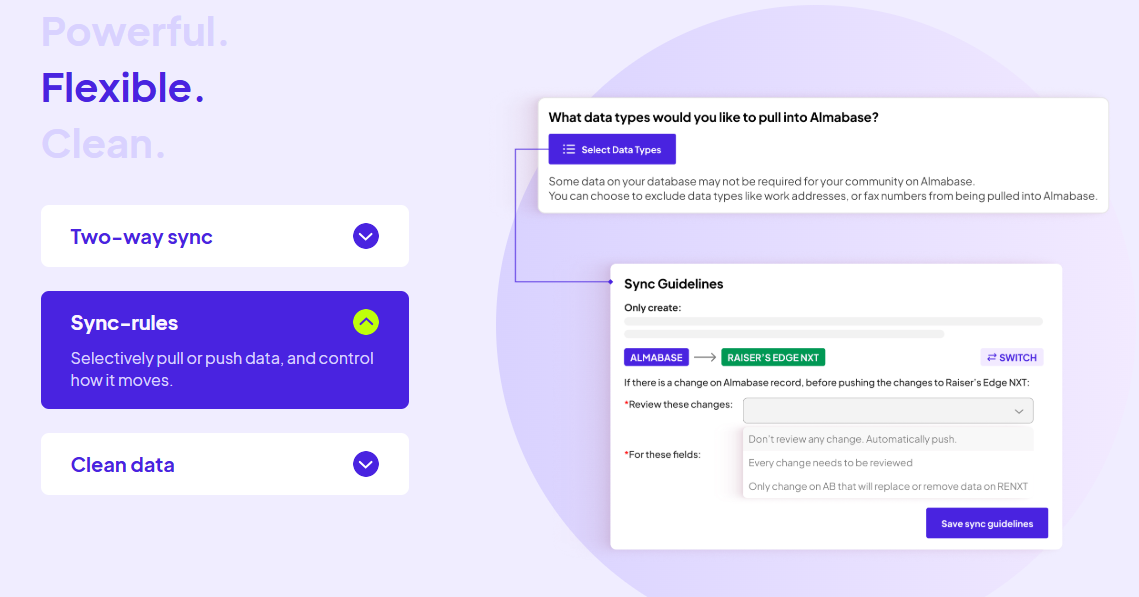
A very important consideration at this point is how the new platform will handle these workflows. For example, Almabase's TrueSync integration with Raiser's Edge NXT lets teams set field-level sync rules, choose which updates are pushed automatically, and review potential conflicts before they make their way into the CRM.
Checklist item: Document your current CRM sync and reconciliation process to identify carry overs, changes and retiring processes.
Now that the pre-migration steps are covered, let’s move on to things you can look out for during the migration process.
Your chosen platform will be able to give you an implementation timeline for when the new platform is ready. But it should be your event calendar that tells you when you’re ready for the switch.
A period of lull between two major events or between the registration for an event and the event itself are windows where your team will have the bandwidth to account for the many steps involved in the migration and oversee them adequately. This way, they have enough time to get used to the new platform by the time event day rolls in.
Checklist item: Choose a cutover date that falls well clear of your busiest event and registration periods.
Once the final exports are ready, you can decide with your team when operations on the outgoing platform need to stop. These operations include new registrations, edits to existing records, and any other updates that should be found on the new platform.
Give everyone who uses the older platform a clear freeze date and clearly lay down what it means for their day-to-day work. If changes are made after the final export, they could result in mismatched records.
Checklist item: Set a clear freeze date and make sure everyone working with the outgoing platform knows what needs to change.
There will be open questions, decisions, data issues, and small things that need fixing throughout the migration. Keeping those across email threads makes it harder for everyone to be on the same page.
A shared issue log gives your team and your implementation partner one place to track:
It also functions as a reference document as questions get answered and processes on the new platform start emerging.
Checklist item: Keep one shared issue log with your implementation team and use it to track every open item.
Some hiccups along the way are to be expected in the migration process. While most of these issues could be solved in a timely manner, some issues might need to be addressed more thoroughly, such as:
Sit down with your team and think of scenarios that would warrant a delay in the go-live date if it means handling these issues before they snowball into much bigger ones. It is also best to communicate this with your vendor.
Checklist item: Agree on what would delay go-live.
Your first few weeks on the new platform will very likely come with a few questions that require looking back at the old system.
Make arrangements for read-only access for a couple of months as something of a fallback. You may not need it every day, but having the old system available gives your team a useful point of reference while they settle in with the new platform.
Checklist item: Arrange for read-only access to iModules for at least 30 days after cutover.
This phase is for your team to settle in and flag any workflows or functionalities that aren’t working as anticipated. It’s also a good time to identify training gaps.
Once the new platform is live, give your team some time to see which changes are sticking. Some improvements will be obvious quickly, while others will only show up after a few events and reporting cycles.
Look at the workarounds you identified during the planning stage. Try and identify:
Checklist item: Track which manual workarounds have disappeared, which remain, and why.
Revisit the reports and questions you documented before migration. Run them again in the new platform and compare the results with your old baseline.
Pay attention to both the answer and the effort involved. The data should be complete and accurate, and your team should need to spend less time pulling it together.
Checklist item: Re-run your key reports and compare the results and effort with your pre-migration baseline.
As they get familiar with the new platform, your team will notice things that don't show up in the plan. Talk to them about what's working, what's slowing them down, and where they're still falling back on old processes.
A quick check-in at 30 and 60 days gives you two useful points to catch these issues while the experience is still fresh. It also reveals areas where training might be required to better utilize the new platform’s capabilities.
Checklist item: Schedule 30- and 60-day team check-ins to refine workflows and identify training opportunities.
Here’s your migration checklist at a glance:
The technical side of an iModules migration is only one part of the move. The other arguably equally important part is making sure your team doesn't carry old processes and assumptions into the new system. A few things are especially easy to overlook.
The side forms, manual exports and paper check-in processes your team’s perfected to a ‘T’ exist because of familiarity with the older platform. This could look like:
To avoid this, take the workaround inventory you created during migration planning and review each item against the capabilities of the new platform. Mark each one as migrate, redesign, or retire. Build and test only the workflows that still have a place in your new setup. A migration is a good opportunity to retire tedious processes that have become part of the routine simply because they were necessary before.
Before importing anything into the new platform, make sure you've agreed on what needs to move, what can be cleaned up, and what should be left behind. This is one of many steps you’ll have to take to maintain data hygiene across the two platforms.
Data migration issues could show up in various ways:
To avoid this, build validation into the migration itself. Pull a representative sample of records and check them end to end, then reconcile your export and import counts, before the go-live date. Pay particular attention to constituent matching, duplicate records, historical event participation, registration details, and any fields that are handled differently across systems.
A new workflow can look perfectly straightforward in a demo and still behave differently when a few hundred real attendees are registering or checking in. Where possible, run a live event through both systems before you fully switch over. It gives your team a chance to catch gaps while the old process is still available as a fallback.
A new platform changes how your team works in big ways and small, especially when it introduces workflows that didn't exist in iModules. Training that only covers where to find familiar features can leave teams unprepared for the day-to-day work that follows.
To avoid this, build training around real workflows. Have the people who will actually manage events, check-ins, reporting, and CRM data work through representative scenarios themselves. Record those workflows as internal guides so new or occasional users have something to refer back to.
The first few weeks after a migration usually involve a mix of small adjustments and quick wins. An immediate change teams notice is having to spend less time on manual workarounds once new workflows settle in.
The bigger changes, like reporting or event-day processes, take a little longer to become apparent.
Giving your team room to ask questions, refine workflows, and build familiarity early on will make the transition considerably smoother.
The checklist above is useful whichever platform you choose. If Almabase is on your shortlist, you can take those same migration questions and use them to see how the workflows would translate.
The advantage of doing this exercise before you choose a platform is that you'll already have a set of workflows to test. If you choose Almabase, these areas give you a starting point for your parallel run. If you choose another platform, you can take the same checklist into those conversations and ask the same questions.
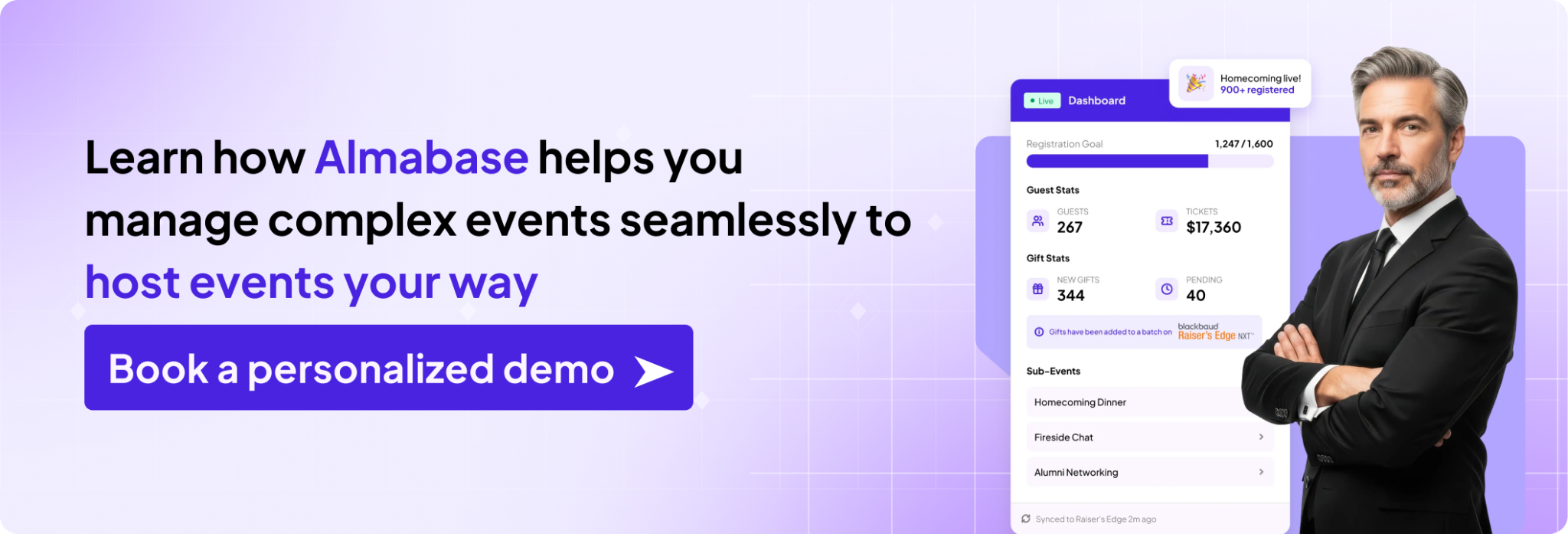
As you compare different platforms, take the time to understand which parts of your current setup work well, which ones create unnecessary work, and which workarounds your team is ready to leave behind. This exercise here helps with just that.
With this migration plan, your team should be able to tell you what they need from the new platform, and also make it very clear what they don't want to carry forward. Those are just as important to define as the features you're looking for. It will also help your implementation team and your vendor’s team be on the same page throughout the process.
Go into vendor conversations with both lists in hand: what you want to build, and what you want to stop doing. That's what gives you a much clearer benchmark for deciding whether a new platform will improve the way your team works and whether any additional spend was worth the time saved.
Subscribe
See how modern advancement teams bring alumni engagement and fundraising together.
Plan faster. Execute better
Explore free templates designed for alumni and fundraising teams.
.png)

.avif)
Anwesha Kiran
With the dust settling from Anthology’s major corporate restructuring, your team might find themselves faced with the opportunity to re-evaluate what’s working and what isn’t. This is especially true if events sit at the absolute center of how you engage alumni and drive giving.
In this blog, we’ll walk through the top alternatives for your team with events in mind, what to look for in a modern system, and what a smooth transition away from Encompass (iModules) looked like in practice. Let’s dive in.
While most platforms will look similar on paper, you can look at how their features come together, especially around events.
Here's what to evaluate:
The CRM is where data comes together, and when someone registers for an event, makes a gift, or updates their information, you don't want that data sitting in a spreadsheet waiting to be imported later. With Encompass (iModules), event data reaches your CRM through manual exports or scheduled batch syncs, which means your team could be looking at outdated information. During a giving day, reunion, or fundraising gala, that delay can make it much harder to understand what's happening in real time and respond while engagement is at its peak. Your data should feed into your CRM in real time, giving your team an ideal, reliable view of what’s happening in your event.
TrueSync keeps Blackbaud Raiser’s Edge NXT and Almabase in sync in real time, so gift and event data never sits in a queue waiting for a manual export.
Because Encompass (iModules) was built on a legacy architecture, its event features can feel disconnected from the rest of the platform. In practice, that often means advancement teams have to step outside the system to handle things like ticketing, check-ins, or attendee management. Instead of running everything in one place, staff end up juggling multiple tools, switching between them during busy events, and piecing together attendee data afterwards. Your event platform should support the entire event lifecycle in one place, so your team spends less time wrestling with the technology and more time creating great alumni experiences.
Planning a multi-day event like Homecoming or Reunion Weekend with Encompass (iModules) can become more complicated than it needs to be.
Things like creating individual sessions, setting capacity limits, or building different itineraries for guests often require manual workarounds because the registration forms aren't flexible enough to handle them easily.
Ideally, you should be able to build a single master event and organize sessions, tracks, and attendee schedules underneath it with just a few clicks.
Making a quick text edit, updating a logo, or adding a last-minute question to an Encompass (iModules) page can mean waiting on IT or burning a customer support ticket. Advancement teams rarely have dedicated web developers. The coordinators who run your campaigns should be able to create, brand, and modify pages confidently on their own, ideally with minimal to no coding required.
Before we get into the details, here’s a summary of the top 5 Encompass (iModules) alternatives and all they have to offer:
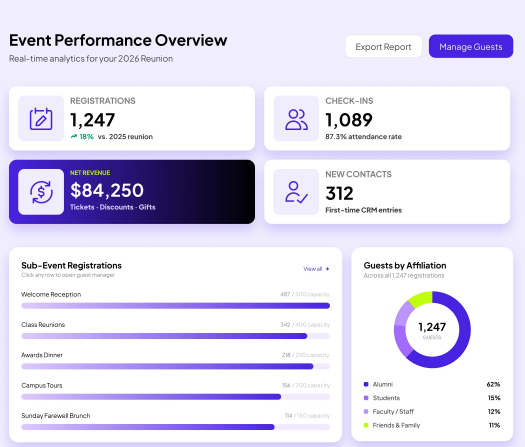
Almabase is a good fit if your team runs events year-round. Instead of piecing together separate tools for registration, ticketing, communications, and CRM updates, everything lives in one place. Event attendance and constituent information sync automatically with Raiser's Edge NXT, while giving data flows over in clean, organized batches. That means your team always has an up-to-date view of who's registering, attending, and giving, without spending hours cleaning up spreadsheets after every event.
Key strengths:
After nearly a decade on iModules, the team at New England College found themselves spending more time managing technology than engaging alumni. Everyday tasks involved manual data entry, spreadsheet clean-up, and workflows that felt far more complicated than they needed to be.
Switching to Almabase gave them a much simpler way to work. Anna Twombly, Director of Annual Giving and Alumni Relations, said the migration was far smoother than expected, and her team quickly became self-sufficient. They could launch giving days, manage event registrations, and update pages themselves instead of waiting on technical support. For a lean advancement team, that meant less time wrestling with software and more time focused on building meaningful relationships with alumni. Check out the full conversation below! 👇
What it's not great at: Almabase does not include prospect research or wealth screening tools. If complex management for major gifts research is a priority, you'd need to layer in a separate platform.
Pricing: Custom pricing based on institution size and needs.
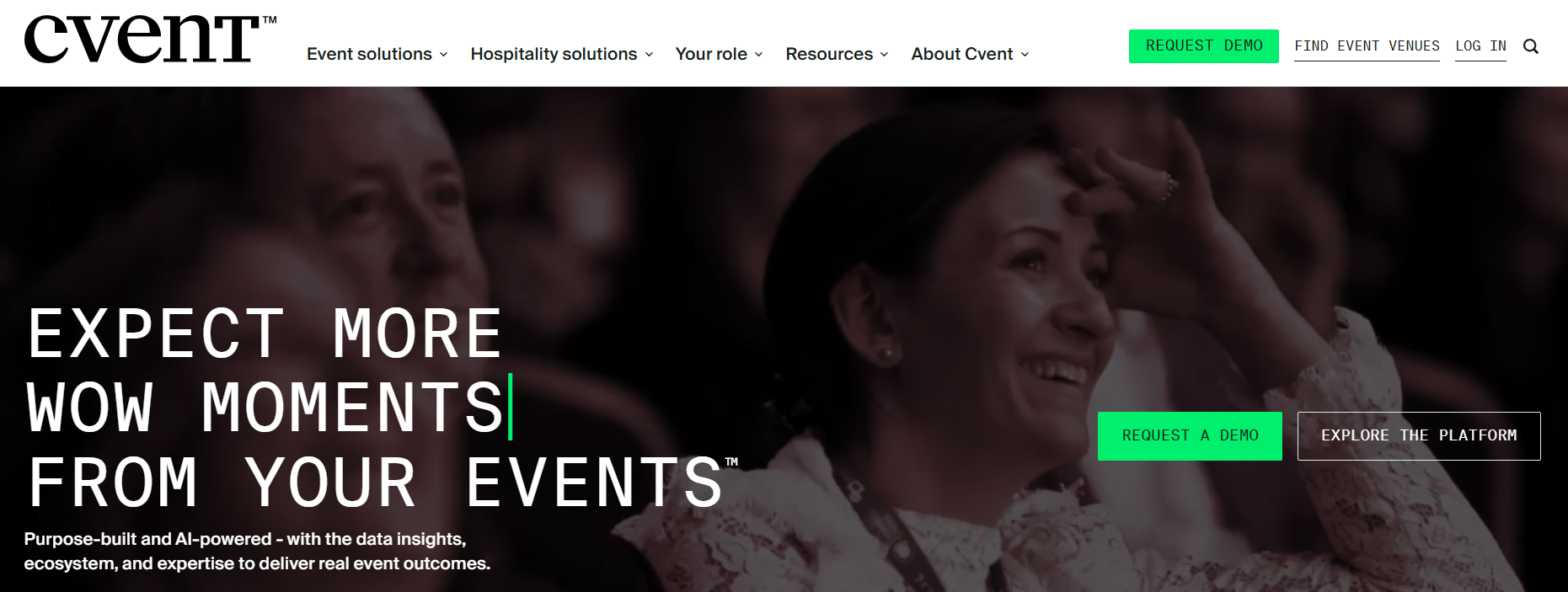
Cvent is one of the most well-known event management platforms on the market. If your institution is coordinating admissions fairs, conferences, athletic events, and campus-wide programmes from one central system, Cvent makes a lot of sense.
Key strengths:
What it's not great at: Cvent is designed as a general event management platform, and not specifically for advancement. That means alumni engagement features like community directories, mentorship programmes, giving pages, and donor-focused workflows aren't part of the core experience.
Universities looking for a single platform to manage large, institution-wide event programmes across multiple departments will find Cvents to be a natural fit.
If your advancement office mainly runs reunions, regional events, giving days, and alumni programming, you may find Cvent more complex than you need.
Pricing: Custom quote, with the median at $19,500 a year.
Eventbrite is one of the easiest ways to publish and sell tickets for an event. It's familiar, simple to use, and great for taking a registration page live quickly. If you're hosting an event where ticket sales are the priority, it's hard to beat for convenience.
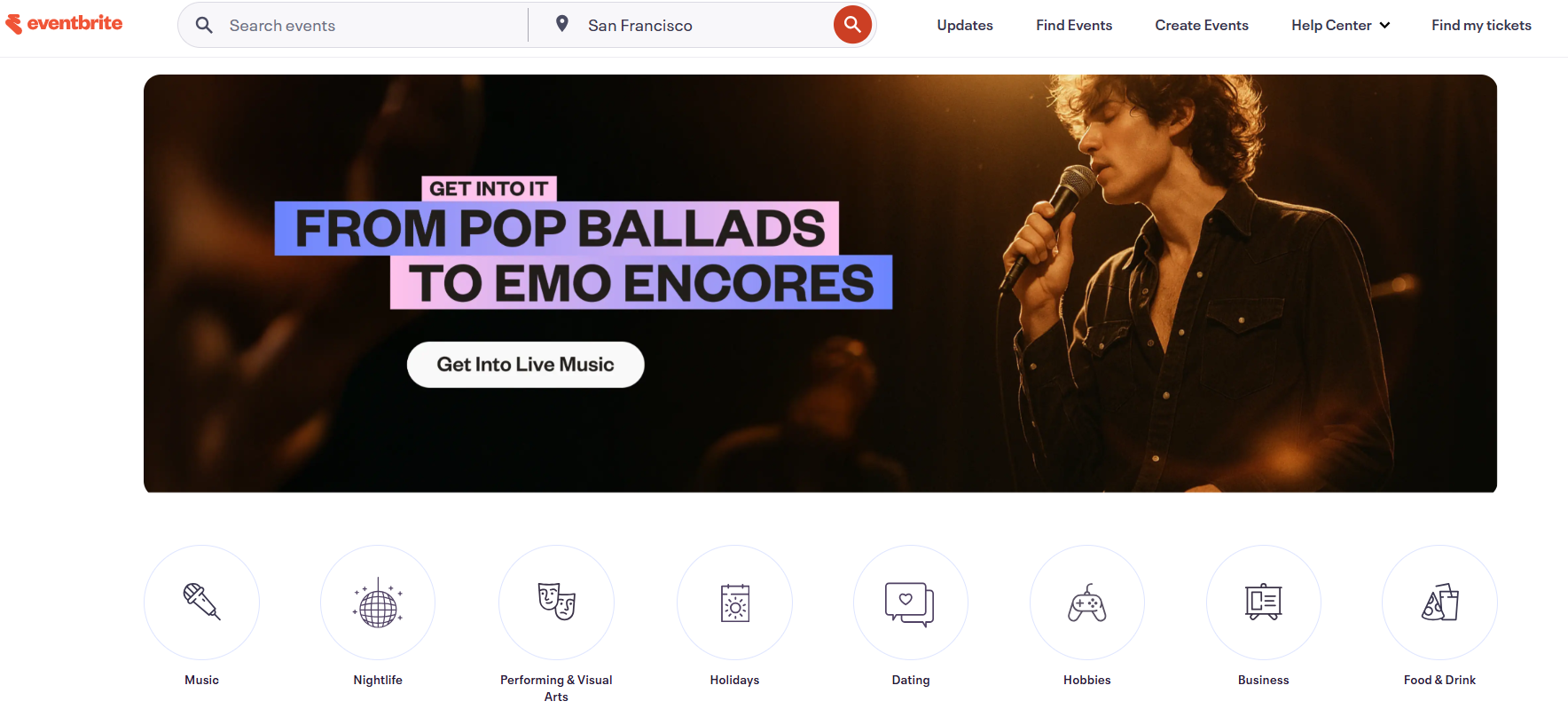
Key strengths:
What it's not great at: Eventbrite was built for event ticketing, not advancement. It doesn't recognize alumni or donor records or support fundraising workflows like pledges and auctions. Because it doesn't natively sync with advancement CRMs, your team will likely end up exporting attendee lists and matching records manually after every event.
Smaller advancement teams or alumni clubs running simple, standalone events where collecting registrations is more important than tracking long-term constituent engagement will find this to be a good fit.
Pricing: Free for free events. For paid events, Eventbrite charges per-ticket fees. Verified nonprofits can receive discounts on some marketing plans, but those discounts don't apply to ticketing fees.
Gravyty takes a different approach: instead of offering one place to manage everything, it brings together a suite of products focused on fundraising, donor engagement, alumni networking, and AI-assisted outreach. If your biggest priority is growing digital giving and helping gift officers work more efficiently, it's a compelling option.
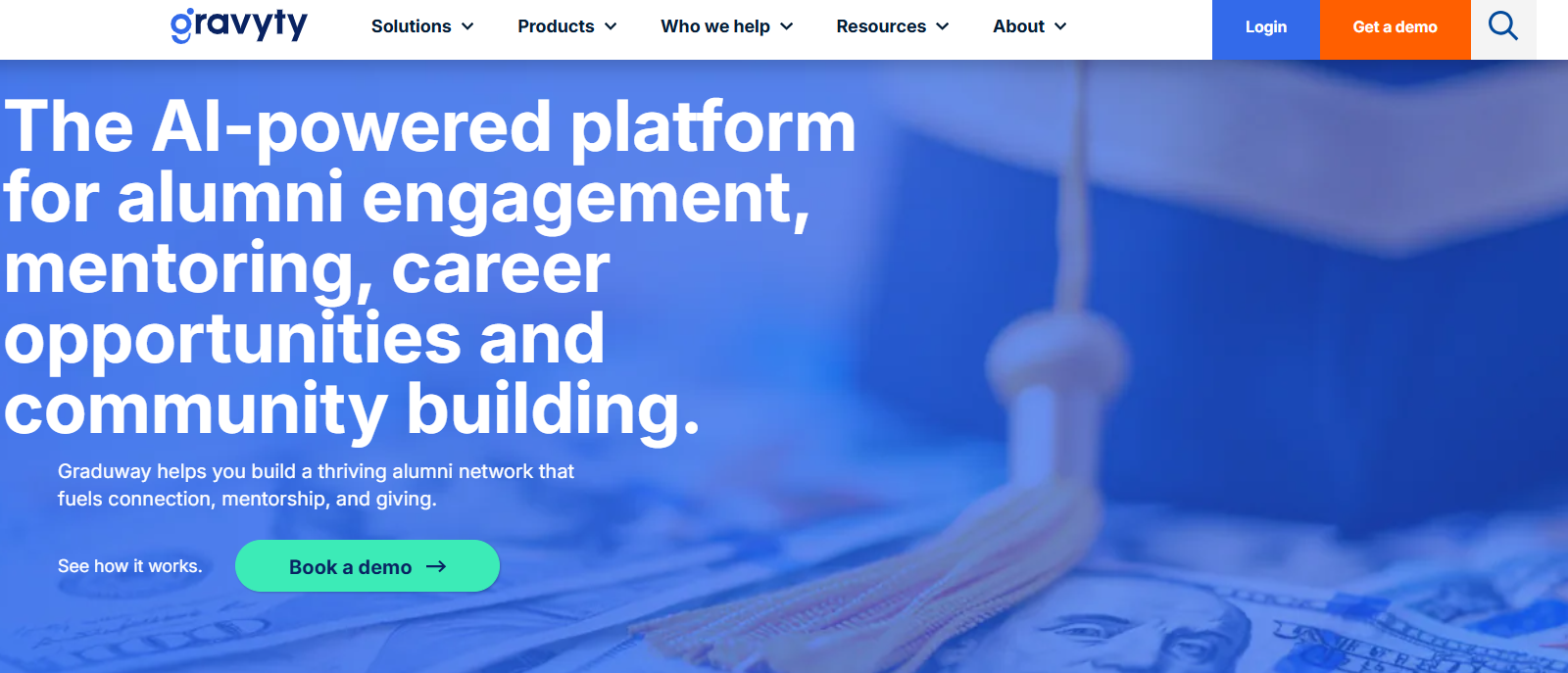
Key strengths:
What it's not great at: Gravyty isn't designed as a single, unified event management platform. Basic event registrations are available through Graduway, but the event functionality is relatively lightweight. Data also syncs back to CRMs like Blackbaud or Salesforce through scheduled updates rather than continuously in real time.
This option would be good for advancement teams that prioritize digital fundraising, AI-assisted major gift work, and donor stewardship over complex event management, and are comfortable working across multiple products instead of one integrated platform.
Pricing: Custom pricing based on your institution's size and requirements.
Givebutter is a highly popular, modern fundraising platform that bundles peer-to-peer campaigns, event ticketing, and auction tools into an incredibly user-friendly dashboard.
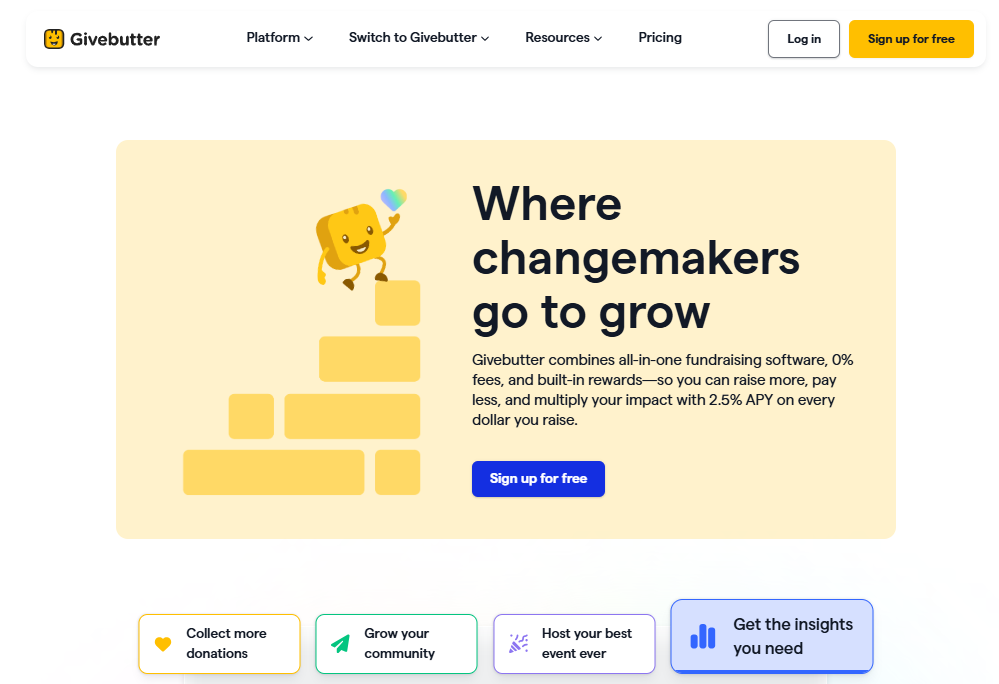
Key Strengths:
What it's not great at:
It is not built for higher education. It lacks alumni portals, directories, or mentorship matching. More importantly, it features no native, two-way advancement CRM integrations (like a direct Raiser’s Edge NXT sync). Because it is designed for simple, single-form events, running complex university milestone schedules like a multi-day Homecoming or Reunion Weekend will quickly outgrow its functional limits.
Givebutter is a great fit for individual campus departments, student organizations, or smaller advancement shops running straightforward, standalone peer-to-peer campaigns and auctions on a tight budget.
Pricing: Core tools are free if donor tips are left on. Disabling tips triggers a flat 3% platform fee (plus standard credit card processing). Upgrading to Givebutter Plus for advanced automations uses contact-based pricing, starting at $29/month for under 250 contacts and scaling upward as your alumni list grows.
Many university advancement teams already rely on Blackbaud Raiser's Edge NXT to manage donor relationships and fundraising. It's excellent at tracking constituent history, gifts, and engagement over time, but it isn't designed to run events on its own.
Things like event registration, attendee management, and on-site check-ins require a dedicated event platform. If you want that event data to flow into RE NXT without manual imports, you'll need a platform with a purpose-built integration, such as Almabase's TrueSync or Cvent's connector. For institutions already invested in the Blackbaud ecosystem, it's often the easiest way to modernise event management while keeping the same CRM at the centre of operations.
Ellucian is designed for institutions that want advancement data closely connected to the rest of the university ecosystem, from student records to finance and ERP systems. It serves as a powerful back-end system for managing constituent and fundraising data, but it isn't built to power the day-to-day event experience.
Features like branded registration pages, flexible event forms, and on-site check-in usually require a separate event platform. As a result, many advancement teams use Ellucian alongside a dedicated events solution that handles the public-facing side of registrations while keeping the underlying data connected.
Salesforce is flexible and works well as the central CRM for institutions with complex data needs. Institutions piece it together using offerings like Salesforce Education Cloud and Salesforce Nonprofit Cloud, depending on whether the priority is student lifecycle data or donor and fundraising management.
But when it comes to running events, its native capabilities are fairly limited. Most teams rely on dedicated event platforms like Almabase or Cvent to handle registrations, event websites, and attendee management. Those integrations then feed event data back into Salesforce, allowing institutions to keep the CRM as their single source of truth without asking it to do everything on its own.
Whichever CRM you use to hold your donor data, the event layer you place on top of it is what determines how much overhead your team can expect in terms of data reconciliation.
At the end of the day, it is up to you and your team’s unique needs that will determine your platform of choice for 2026 and beyond. But we hope we’ve been able to give you a good starting point to find the right fit for you.
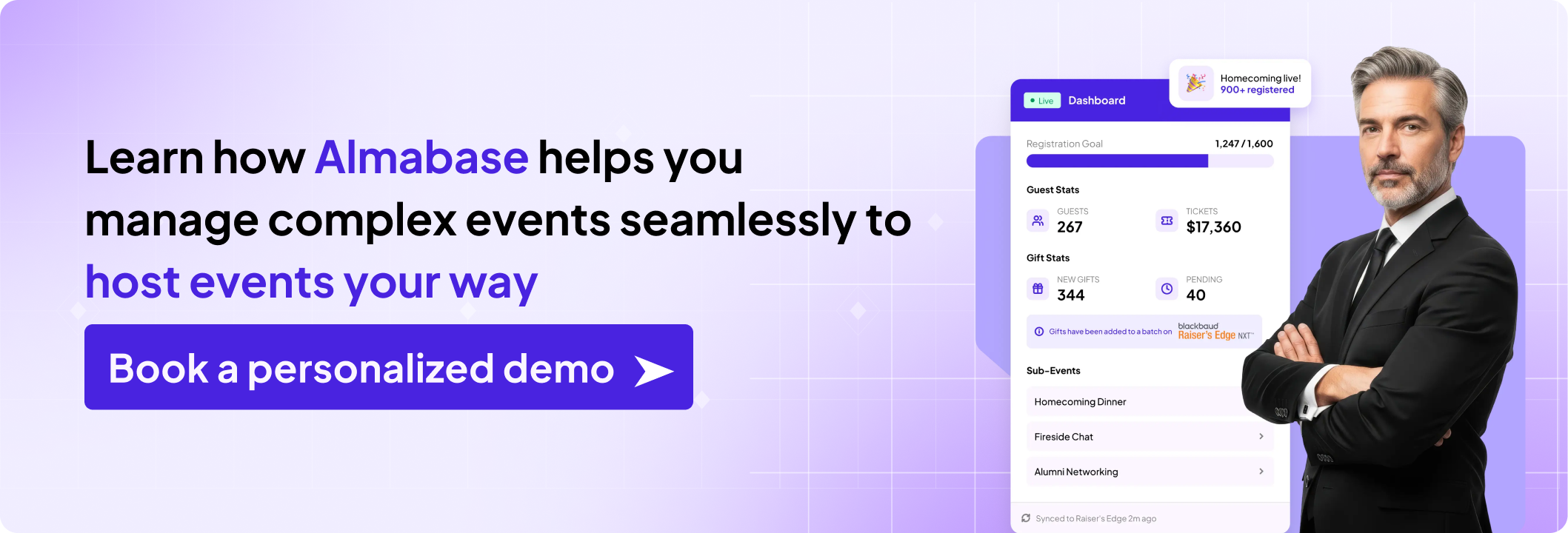
If you’d like to learn more about Almabase and how we help institutions and organizations for advancement needs, feel free to book a personalized demo call with us below! ⬇️
Almabase provides dedicated personnel for your onboarding and training as you or your team gets used to Almabase. We also provide readily available live chat, email, and on-call support in case you run into any hiccups.
Almabase also supports K-12 schools and healthcare foundations managing donor and alumni communities.
Almabase comes with its own set of reporting and analytics tools for giving, engagement, and donor pipeline data.
Yes. Almabase supports multi-day and multi-session events natively, including separate registration and check-in for each session under one parent event, so reunions, homecoming weekends, and multi-track galas don't require a spreadsheet workaround or a second tool.

Best iModules Alternatives for Events-Forward Advancement Teams (2026)
Lorem ipsum dolor sit amet, consectetur adipiscing elit. Suspendisse varius enim in eros elementum tristique. Duis cursus, mi quis viverra ornare, eros dolor interdum nulla, ut commodo diam libero vitae erat. Aenean faucibus nibh et justo cursus id rutrum lorem imperdiet. Nunc ut sem vitae risus tristique posuere.
Almabase
November 21, 2025
12 minutes
As alumni events grow, so do the headcount and the complexity in executing them.
A Homecoming weekend, for example, has so many things to plan for and keep track of: registrations, sub-events, guest management, communications, fundraising, check-in, CRM updates, reporting, all happening simultaneously. This is a whole different ballgame than just a bigger pool of attendees.
Every successful event, whether it's a regional chapter gathering or a multi-day Homecoming celebration, moves through the same five stages:
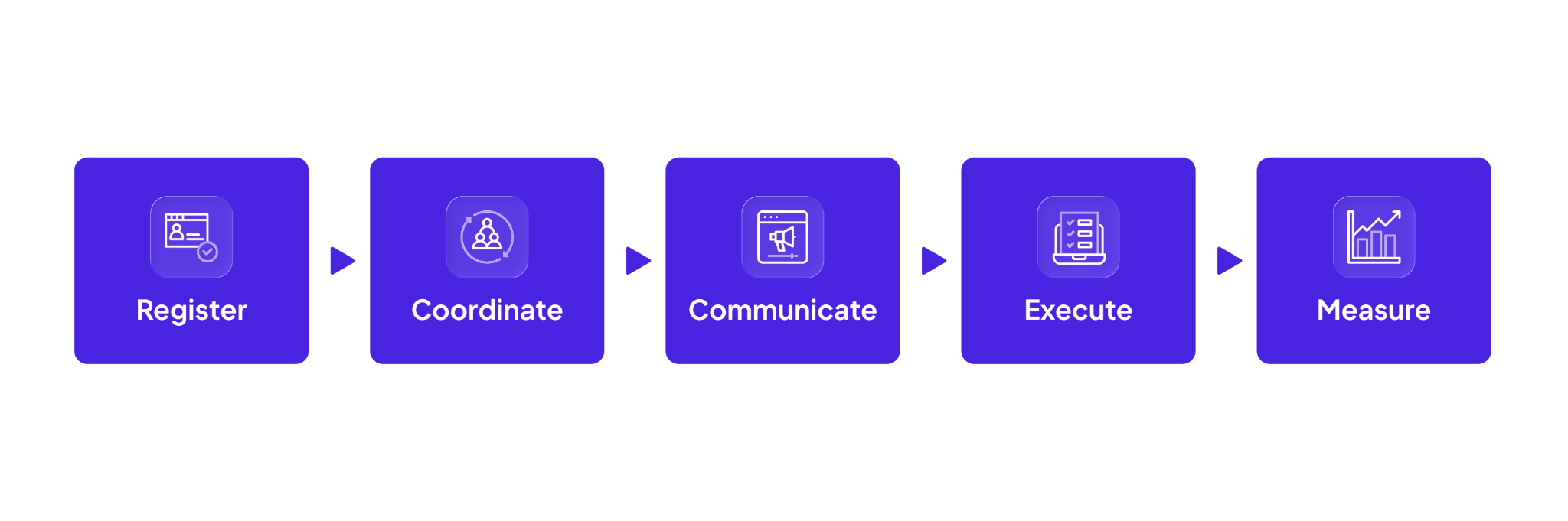
A Homecoming weekend or a Giving Day means these same five things, but now alongside multiple sub-events running in parallel, attendees taking completely different paths through the weekend, tighter timelines to pull it all together, and more data flowing between more systems than any one person can track by hand.
These learnings are gained over time and Almabase is built around them to support the entire event lifecycle, from the first registration to the insights that shape the next event.

Getting alumni to register sounds straightforward, but the complexity could already start building at this stage.
Attendees RSVP and bring guests, or sign up for a single session before opting into several others, which may carry different pricing tiers. Sometimes, they even change their minds midway through.
The organizers’ goal is to accommodate these compounding decisions seamlessly. A good registration experience makes all of these as effortless as possible, for attendees and for the team behind the scenes.
Regardless of when you start planning, your event page should be something your team can build themselves. It is very likely that you’ll need to make last-minute adjustments to keep up with changes to your strategy.
Almabase lets you build fully branded event pages with no code, reuse templates across events, and publish quickly while keeping everything aligned with your institution's visual identity.
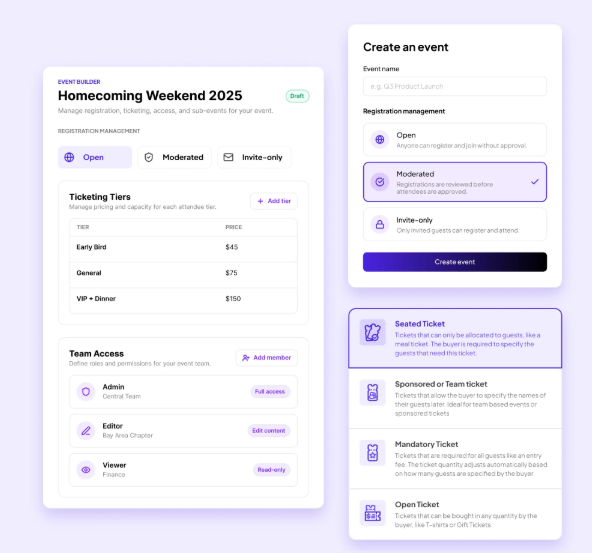
The result is faster launches and one less external dependency when timelines tighten close to event day.
Think about a typical alumni weekend or events scattered throughout spirit week. On the guests’ end, someone signs up for the Friday evening reception, skips the Saturday morning campus tour, buys tickets for the gala, and brings two guests to the football tailgate.
Behind the scenes, every one of those activities has its own capacity, schedule, pricing, and attendee list. If your systems don’t keep up at this point,tracking individual attendee schedules and ticket details becomes overwhelming. Information will slip through the cracks.
With Almabase, you can organize all of those experiences under one parent event, while giving each sub-event its own registration flow, ticketing, capacity limits, and logistics. Alumni still enjoy one seamless registration journey, while your team manages everything from a single backend instead of juggling multiple event pages and spreadsheets.
Cornell College runs its entire alumni program with 15,000+ alumni on a lean team, and it shows in what they've been able to pull off with one connected system: 1,008 donors on Giving Day, a 4.7/5 participant rating, and 430+ Homecoming attendees, all without adding headcount.
Read the full blog here.
Reunions are designed around reconnecting with classmates, old roommates, mentors, partners, and sometimes introducing children to the campus that's featured in so many family stories. The point is, these are not solo events, and the registration should reflect that.
Instead of asking every guest to complete a separate registration, Almabase allows alumni to register together. Families, spouses, classmates, and other guests need not separate out in the registration process, making for a smoother experience while helping your team keep relationships and headcounts organised.
You don’t want a reunion volunteer to see the same questions as a first-time attendee, and someone attending only the gala shouldn't have to scroll through options for every campus tour.
This is solved by the conditional questions that can be used in forms built with Almabase.
Based on an attendee's answers and preferences, you can choose to surface different questions, sessions, ticket options, or pricing automatically. The form adapts as people move through it, keeping the experience simple while ensuring your team still captures the information it needs.
While it is a small detail, saving your attendees unnecessary information overload definitely adds to their experience.
A tale as old as time, and perhaps the most unsurprising: a delayed flight means swapping the morning session for the afternoon one, or someone remembers (well after registrations have closed) that they wanted to bring their spouse along.
While it’s great to accommodate these changes, there’s no way to account for the manual overhead these create.
Instead of asking staff to rebuild registrations every time someone's plans shift, Almabase allows attendees to update registrations, cancel or switch sessions, or manage guests themselves. The time your team would’ve spent fixing records is now free to go into preparing for the event.
Once registrations start flowing in, your team then needs to focus on organizing an increasingly complex event without creating too much operational overhead.
Moments that get your attendees the most excited, such as when they walk in through the campus they once called home, catching up with old friends, watching current students with pride or recounting their campus experiences to their kids, are moments of pure connection.
Fundraising, when built into the event, must come as part of this experience, but not interrupt it. It takes a bit of careful planning to get this just right.
With Almabase, you can choose to build fundraising moments throughout the event journey: during registration, through dedicated giving pages, at check-in, or on-site through mobile giving. Whether someone wants to make a one-time gift, set up recurring giving, or add a donation alongside their ticket purchase, it all happens within the same experience.
Part of running a great event is watching popular sessions get sign ups beyond anticipation.
Without a structured way to manage this demand, your team might find itself needing to maintain manual waitlists, replying to individual emails, or trying to remember who expressed interest first. And when a spot opens up because someone cancels, the scramble unfolds: pulling sign-up data from multiple lists, checking who cancelled, who expressed interest and can be slotted in instead - it’s a lot.
Almabase's sub-event waitlists are built to handle that process for you. When a session reaches capacity, attendees can join a waitlist instead of being turned away. If a spot becomes available, whether through a cancellation or increased capacity, they're automatically (or manually, if you prefer) offered that spot with a time-bound registration link. If they don't respond in time, the offer moves to the next person in line.
For events where some attendees deserve priority, like reunion committee members, sponsors, or VIP guests, you can switch to manual mode, reorder the queue, and choose exactly who receives the next available spot.
It’s one of those details that you think you can manage, but it's exactly the kind of thing that saves event teams hours of back-and-forth while ensuring every available seat has the best chance of being filled.
The event begins much before event day for your team, but in many ways, for your attendees as well. Invitations and save-the-dates are followed by a period of planning: booking accommodation, transportation, taking time off work or family, or bringing someone along.
The communication should spark the decision to come and honor this commitment shown by your attendees. The reminder nudges them to finally register, while the confirmation reassures them they've signed up for the right sessions. The follow-up keeps the conversation going once the event is over. All of these parts come together to make sure the attendees feel like they’re wanted and welcome at the events, and more than just names off of a guest list.
Good communication matches the right receiver with the right message. As simple as it sounds, it can get really complicated in practice as you try and figure out ways to get different messages across to different segments of your audience.
Almabase lets you build audiences using the alumni data you already have. You can decide to segment them by class year, reunion cohort, geography, volunteer involvement, previous event attendance, or giving history.

Instead of blasting your entire database with one generic invitation, you can tailor outreach to the communities you're trying to bring together and no one gets blasted with one generic invitation. A little more thought for some really promising results.
Every event has almost the same email and communication cycle: the save-the-dates, the invitation, a couple of reminders and follow-ups, parking and general event information the day before (sometimes on the day of), and finally a ‘thank you’ once everything is over.
Writing, scheduling, and sending them one by one could take up a lot of time, time that leaner teams especially, could be spending on other, less-repetitive tasks.

Almabase treats email communication as a workflow. With its Emily AI integration, your team can generate a context-aware first draft right inside Almabase's Email Center using a simple prompt like "Invite alumni to our 25th reunion in a warm, conversational tone".It can even pull details from your event page, like the event name, date, location, and registration link, so you're not starting from scratch every time. Once you have a draft, you can refine it, regenerate it, or send it through your usual workflow without ever leaving the platform.
From there the invite automation lets you build an entire invitation sequence upfront, complete with follow-up reminders that are sent only to alumni who haven't yet registered. As people respond, the workflow automatically adapts, so your team isn't manually tracking who still needs a nudge.
And because every email is sent from a sender identity you configure for your institution, the experience feels consistent and familiar to alumni from the very first invitation to the final thank-you. This goes far when your goal is to scale communication without losing the voice that resonates with your audience.
The days immediately after an event are when alumni feel most connected to your institution. The experience is fresh: reliving conversations, sharing photos, reconnecting with classmates, and thinking about when they'll come back next.
That's the perfect moment to keep the momentum going.
Send attendees a thank-you and earnestly ask for feedback while attendees care enough to write back. Share event photos. Reach out with event highlights for those who couldn’t make it. Invite those interested to volunteer at the next planning committee. If fundraising is part of your strategy, follow up with an ask while the emotional connection is still strong.
Almabase makes those conversations easier by letting you tailor follow-up based on what went on: who attended, who didn't, who volunteered, who donated, and who might just need another reason to reconnect.
We believe that the end of an event is a place to show gratitude and leave the door open for conversations about the next one.
Registrations have closed, reminder emails have gone out, and volunteers are at their stations, and everyone's hoping the weather holds up. Months of planning come down to a few hours or a weekend.
Ironically, the mark of a well-run event is when nobody notices the operations behind it.
Attendees notice whether they got through the door without a hitch.
Someone forgot to bring their confirmation email, or a spouse is tagging along but isn't sure whose name the registration is under. These last-minute oddities aren’t unusual, so Almabase equips you with exactly what you need to handle this.
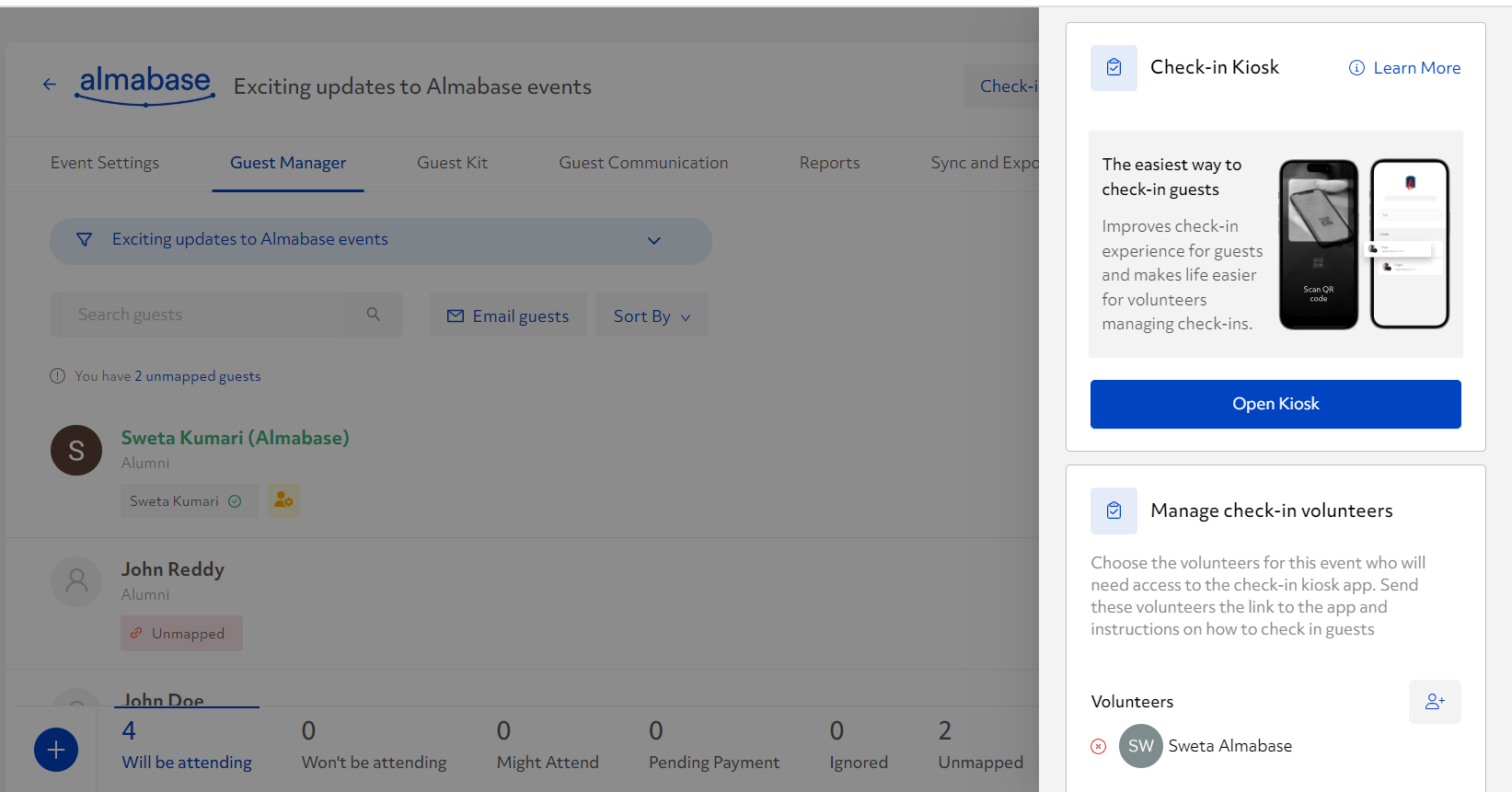
With the QR check-in option, volunteers can scan an attendee's QR code or search for them by name. If someone isn't registered, they can be added on the spot. And because you can assign check-in access to volunteers without giving them full admin permissions, it's easy to run multiple check-in desks without everyone working from the same laptop.
From the attendee's perspective, it's a smooth welcome. From your team's perspective, every check-in is automatically recorded, so you know who actually attended without spending half a day reconciling attendance lists.
Knowing the total headcount of your event is useful, but data that tells you what your attendance means looks like you knowing who showed up for the campus tour, how many stayed for the reunion lunch, and what percentage of your attendees were at the donor reception. This kind of data goes into informing decisions for the next edition of your event.
With Almabase, every sub-event has its own check-in flow. Attendees can scan the QR code from their confirmation email or be checked in by a volunteer, and participation is captured in real time for each individual session. That means you know who attended the event and which experiences they chose to be part of.
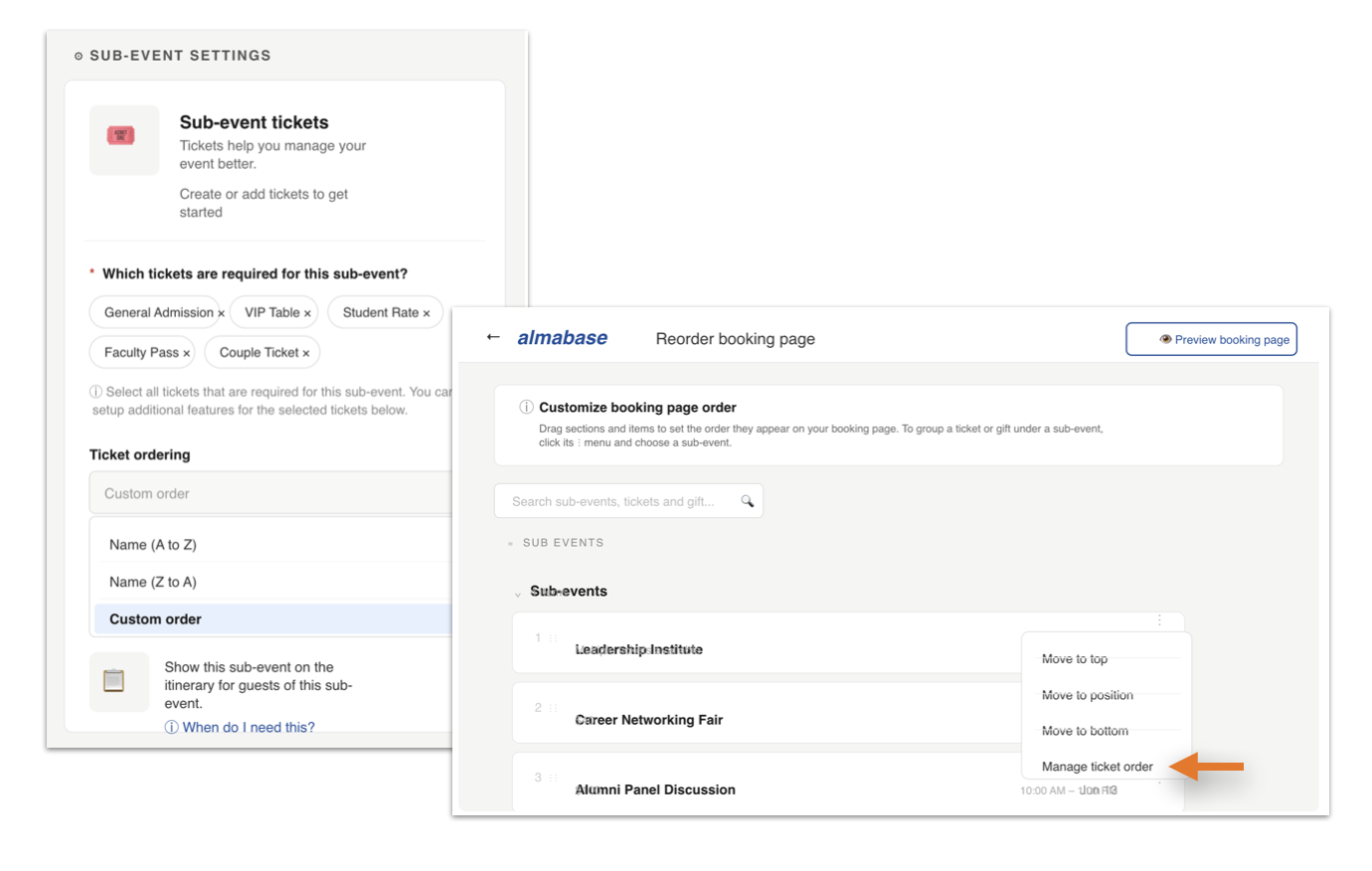
Behind the scenes, that attendance data is synced with your CRM, giving your team a complete picture of engagement.
One enduring change since the pandemic years has been the blending of in-person and virtual programmes throughout event experiences, allowing organizers to reach alumni who will not be able to make it in person.
Almabase understands the importance of providing a uniform experience across these formats. It supports in-person, virtual, hybrid, and multi-day events through the same registration, communication, and reporting framework, giving both attendees and event teams a familiar experience regardless of the format.
Now that the event is over, it’s time to unearth the wealth of insights provided by the data captured throughout all the previous stages.
Answering the ‘How did it go’ question depends on accurately reading the insights from this data. As your team embarks on this last project, your platform should be able to keep up by capturing this information for them.
With Almabase's TrueSync with Raiser's Edge NXT, constituent profiles, event registrations, guest information, gifts, ticketing, and sub-event participation stay synchronized between both systems. You decide how data should move, with flexible sync rules that let you automatically update records where it makes sense or review changes before they're pushed to your CRM.
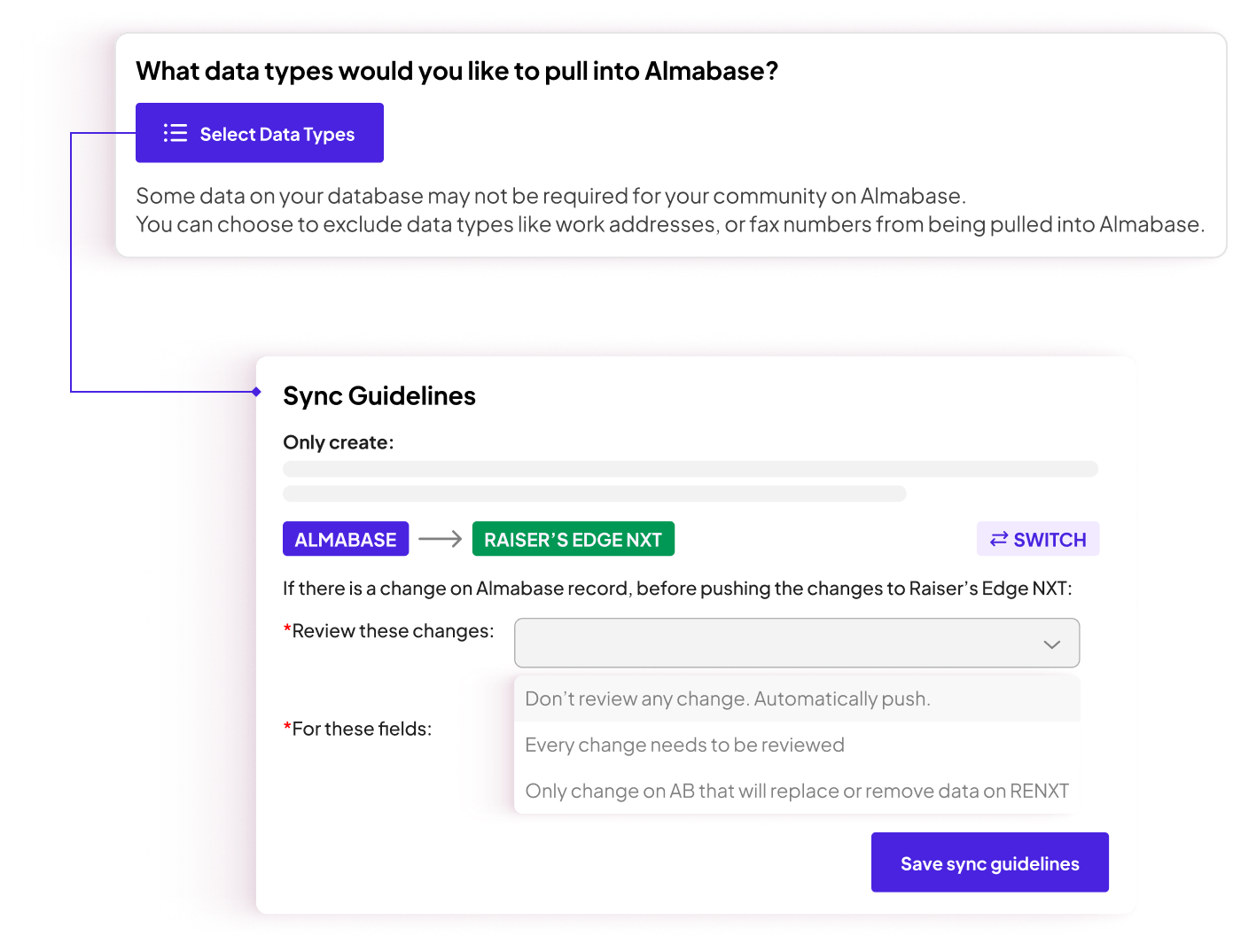
As a result, your team is always working with current, clean data: less time spent maintaining records and more time acting on the insights contained in them.
For MSUM, synced data turned into time they got back: Giving Day reconciliation dropped from four weeks to four days, freeing the team up to launch a stewardship campaign that brought in an additional $40,000 in follow-on gifts. Read more about it here.
Once the event wraps, everyone looks for different metrics for value: the alumni office wants attendance, the alumni relations officer wants to know which reunion class had the highest turnout and leadership wants information on the ROI for the event.
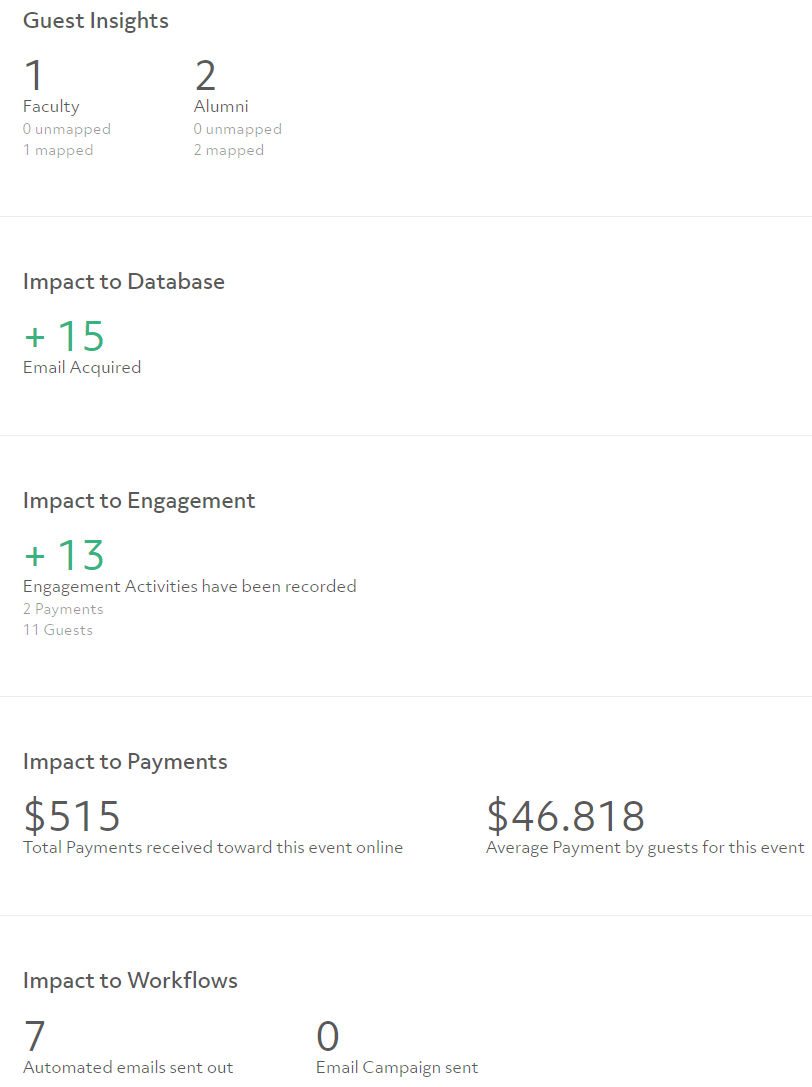
With Almabase, this information is easily accessed and you just have to put it together. Your team gets reports for registrations, attendees, guests, ticket sales, revenue, registration sources, and sub-events without having to export data from three different places first. All of this in a matter of a few clicks.
And because guest data, attendance, and registrations all stay connected via CRM sync, you're working from one version of the truth. Essentially, the data is as reliable as it gets.
Discussing all the stages so far, one thing becomes very clear: if the journey ends at ‘Measure’, you start from scratch with every new event.
Maybe regional events are outperforming expectations while a long-running format has started to plateau. Those patterns only become visible when your event history stays connected. The reports you've built, the attendance you've tracked, the registrations you've captured, and the gifts you've recorded all have another, more important job to do. They're meant to inform the next event.
That's why we'd add one more stage to the framework:

While Measure tells you what happened, Post-event Insights help you decide what to do differently.
Of course, this only works if your event data is complete and trustworthy. When registrations, check-ins, guest records, and gifts flow back into your CRM automatically, you're looking at one complete picture of how the event unfolded and using it to make smarter decisions about the next one.
In other words, you’re feeding the loop instead of closing it.
Every event should leave your team a little smarter than it was before. Over time, Almabase helps build that institutional knowledge, making it easier to compare events year over year, understand what drives engagement, and make decisions based on evidence instead of instinct.
It’s a bit of a misconception that a bigger headcount is what drives up the difficulty when it comes to scaling events. Issues start showing up because with multiple events, the complexity rises, demanding the right systems handle it. With Almabase, teams can handle this complexity while continuing to spend time on curating and creating experiences instead of wrestling with technology.
Scalable ▶️ repeatable ▶️ bigger and better, year on year.
Curious to see what that looks like for your institution? Request a demo with us now! 🤗

Yes. A reunion weekend, Homecoming, or Giving Day can run as one parent event with several sub-events underneath it, each with its own registration flow, capacity, and pricing. Your team manages it all from a single backend instead of juggling separate event pages.
Yes. In-person, virtual, hybrid, and multi-day events all run through the same registration, communication, and reporting framework, so attendees and staff get a consistent experience no matter the format.
Yes. Through TrueSync with Raiser's Edge NXT, registrations, guest information, gifts, and sub-event participation stay synced automatically, so your team is always working from current, clean data.
Almabase is suitable for teams of all sizes. The platform scales to the complexity of the event, keeping registration, coordination, communication, and reporting manageable across an entire calendar of events.
.jpg)
How Almabase Scales Alumni Events Effortlessly
Lorem ipsum dolor sit amet, consectetur adipiscing elit. Suspendisse varius enim in eros elementum tristique. Duis cursus, mi quis viverra ornare, eros dolor interdum nulla, ut commodo diam libero vitae erat. Aenean faucibus nibh et justo cursus id rutrum lorem imperdiet. Nunc ut sem vitae risus tristique posuere.
Anwesha Kiran
July 24, 2026
12 minutes
Homecoming is one of the most anticipated events of the school year for both students and alumni. Picking the perfect high school homecoming theme means balancing what attendees are excited about with what your school can realistically pull off on budget. The goal is simple: create an experience people will remember.
Planning your theme early makes that much easier. It gives you more time to organize everything smoothly and avoid last-minute surprises. To help you get started, we’ve put together 20+ high school homecoming themes ranging from classic and elegant to trendy, easy to pull off and unique.
Classic themes are a mainstay for homecoming week. They’re visually rich, they age well, and alumni can connect with them just as easily as current students, which makes them a smart pick if you want homecoming to feel like a true community event.
A night sky theme is one of the most enduring homecoming themes, and it's easy to see why. Dark blue drapes and shimmering lights can transform almost any gym or hall into something that feels magical without requiring a massive budget.

Both Lincoln High School in Nebraska and Socorro High School in Texas ran 'Starry Night' themed homecomings in 2024, leaning into deep blue and silver palettes, complete with photo booths. The theme works across different school sizes and budgets, which is a big part of why the theme is here to stay.
Why it stands out: It's romantic, timeless and photographs well, which makes it a win. Done well, it is a very shareable theme for social media, which boosts engagement with your events.
Decor ideas:
A Hollywood theme holds the potential to give every attendee their A-list moment. It’s high-energy, glamorous, and everyone knows what to wear and how to act when there's a red carpet involved.
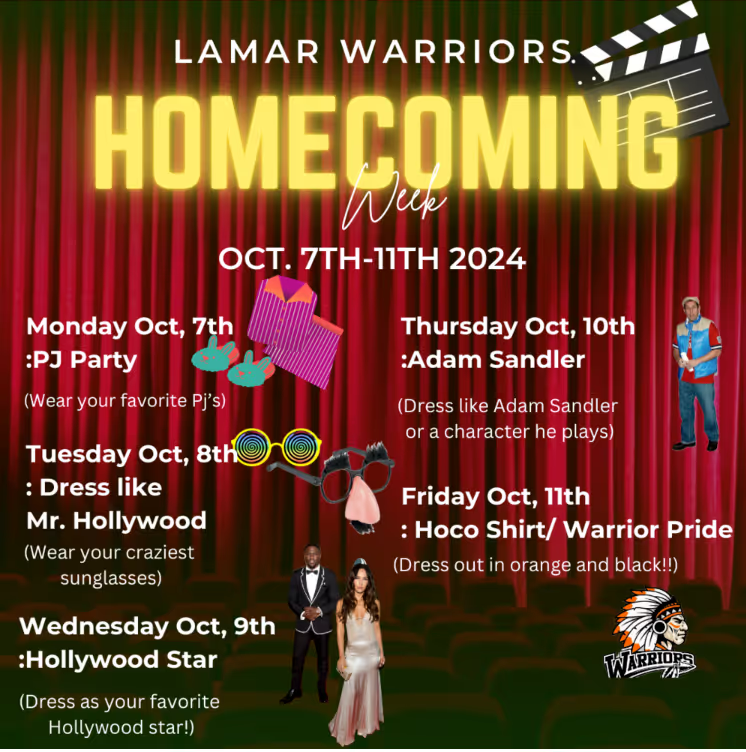
Lamar High School made Hollywood the centerpiece of their 2024 homecoming, building spirit week dress-up days around students channeling their favorite stars. The theme gave every student a chance to feel like a million dollars!
Why it stands out: It's flexible enough to work for spirit week (dress as your favorite celebrity one day, arrive at the dance like you're walking into the Oscars the next), which keeps things exciting and new even while being on-theme.
Decor ideas:
“Enchanted forest” is a theme that can transform a school gym into something that feels straight out of a storybook. Decorations can be as simple or elaborate as your budget allows, and the theme still comes across clearly. You could go for fairy tale elements, a more natural woodland look, or something in between, tailored to your school’s style.

Herndon High School in Virginia took this theme for their 2025 homecoming, incorporating nature-inspired floats in the parade and floral decor throughout the week, proving that the concept carries through spirit week activities as well as the dance itself!
Why it stands out: It feels immersive because of the fantasy element and also lends itself beautifully to photography.
Decor ideas:
A masquerade theme introduces an air of mystery to a regular homecoming week. Masks are an accessory to look forward to, and the Venetian inspiration lends to striking decor in almost any venue.

Fremont Christian School in California ran a masquerade-themed homecoming dance in 2024, leaning into the mystery and elegance of the format.
Why it stands out: It's inherently formal and visually unique. Even those who don't go all-out on their outfit can look the part with just the right mask. It also doubles well as a semi-formal or formal event.
Decor ideas:
Retro themes have been making a comeback, something reflecting on student culture right now as well. Driven by the wave of nostalgia running through fashion and social media, these ideas tap directly into that energy, making them some of the best themes to get excited about.
A decade-hopping retro theme is an energetic format for homecoming week. You can draw inspiration from the decades related to past generations of students, incorporating music, fashion, and popular trends from each era.
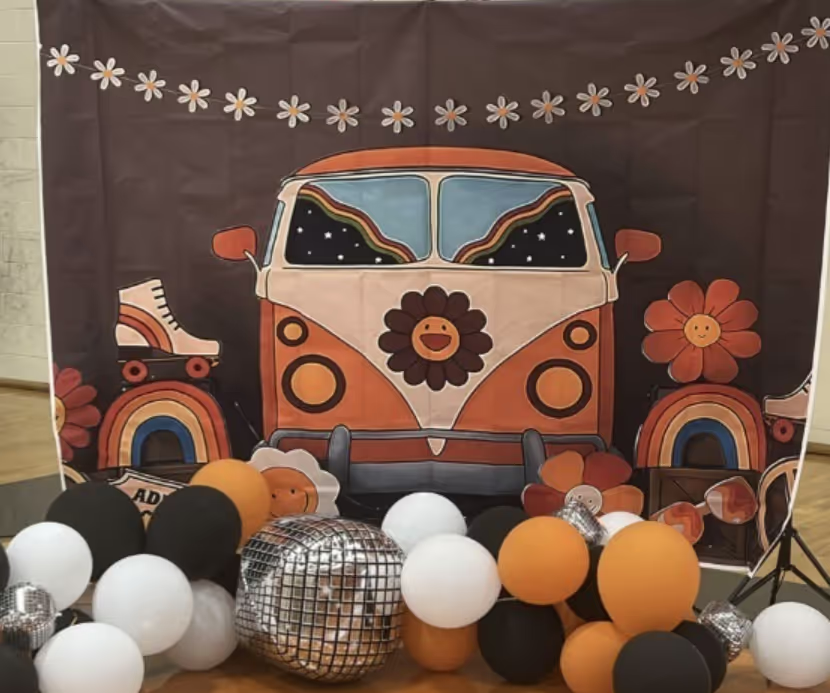
Artesia High School in New Mexico themed their entire 2024 homecoming week around "Groovin' into HoCo," running decade-dedicated dress-up days from the '60s through the '00s, complete with an enchilada supper, bonfire, parade, and assembly.
Why it stands out: It's extremely flexible. Every student can find a decade they connect with, whether it's flower-power '60s, disco '70s, or MTV '80s.. And because most of the "costume" is just clothing, there's almost no financial barrier or prior planning, increasing participation.
Decor ideas:
Leather jackets, sock hops, and drive-in vibes: the 1950s and 60s are full of ideas that can easily be incorporated into a homecoming theme. The looks are fun, accessible, and lend themselves naturally to a full week of themed activities.
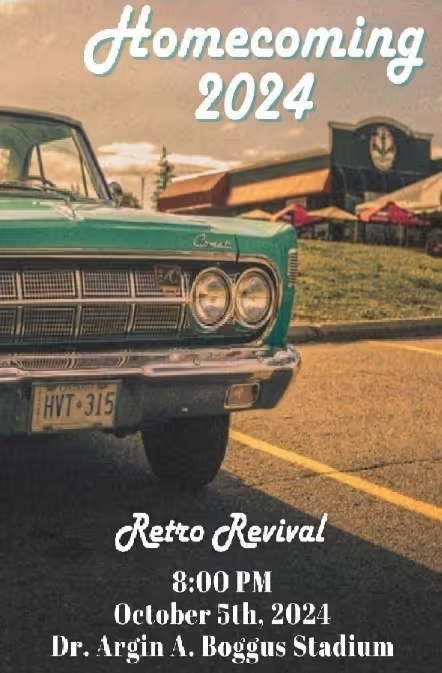
Tavares High School in Florida ran a 'Retro Revival' homecoming in 2024, planning their spirit week around decade-specific themes. The day-by-day format kept students engaged all week, with a retro aesthetic tying everything together.
Why it stands out: It tends to have high dress-up participation because the looks are fun and easy to create. The costume options are wide enough for everyone to find something they're comfortable wearing.
Decor ideas:
The early-2000s nostalgia wave isn't slowing down any time soon! From butterfly clips to shiny tech-inspired accessories, Y2K is having a full cultural moment and high school students are very much along for the ride. There's also a fun generational connection when teachers, parents and alumni join in, having lived through these moments themselves.
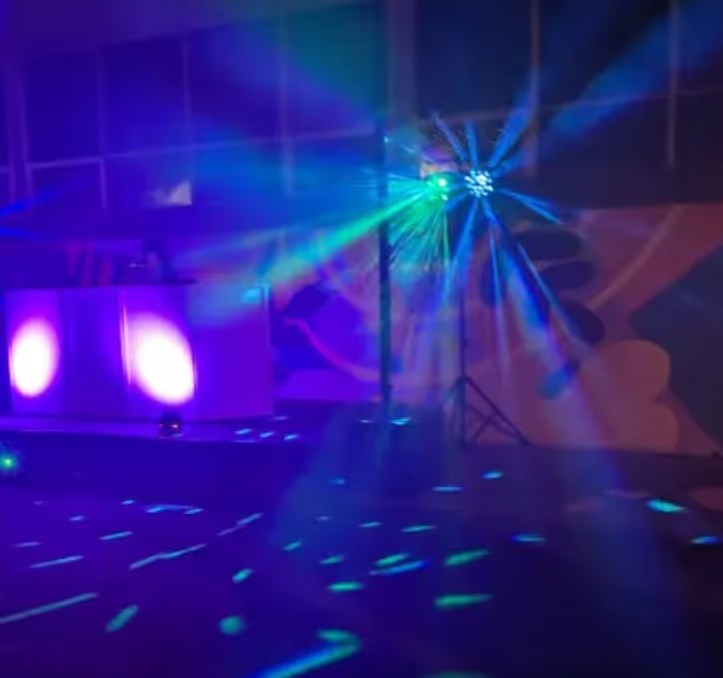
Sunset High School in Portland ran a Y2K homecoming in 2024.
Why it stands out: It reflects what's trending on social media and in fashion right now, which means attendees can simply pick items from their wardrobe and create their costumes.
Decor ideas:
A neon or glow theme turns any venue into a high-energy, visually electric experience. UV black lights do most of the heavy lifting, which makes this a surprisingly easy theme to execute well.
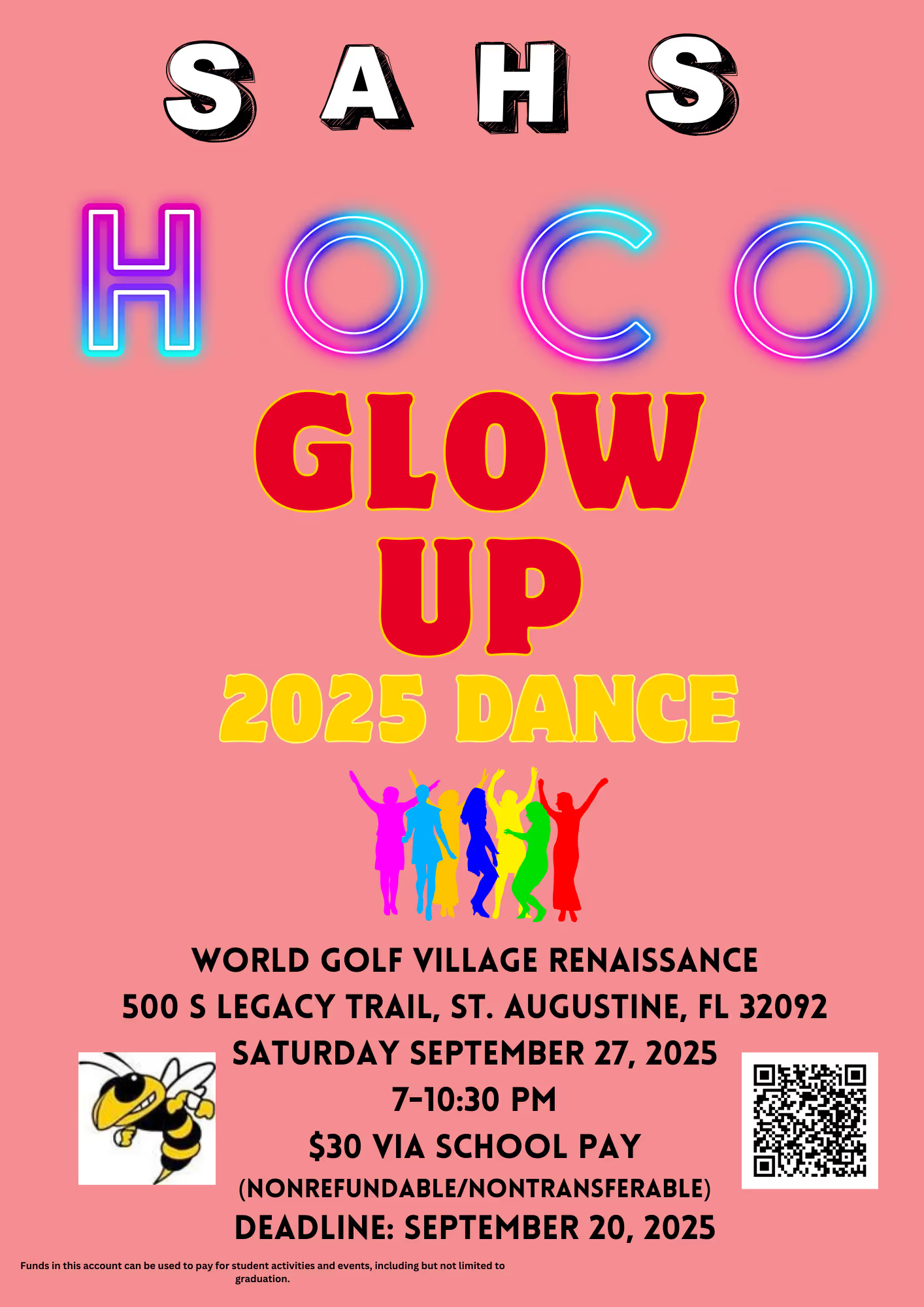
St. Augustine High School in Florida made their 2025 homecoming theme 'Neon Glow Up!', hosting the dance at a local hotel to add an upscale feel to the vibrant concept. Taking the theme off school grounds gave it an elevated atmosphere.
Why it stands out: Neon and glow accessories are easy to find, so attendees at every budget level can fully participate. The visual impact in photos is also huge, which drives social sharing and school spirit.
Decor ideas:
The best homecoming themes don't need to be expensive ones. These ideas require no elaborate venue transformations and those attending can put their look together from things they already own.
A western theme works because it builds the week around something attendees can dress for without spending a dime. Flannel, boots, denim, and cowboy hats are already in most wardrobes.
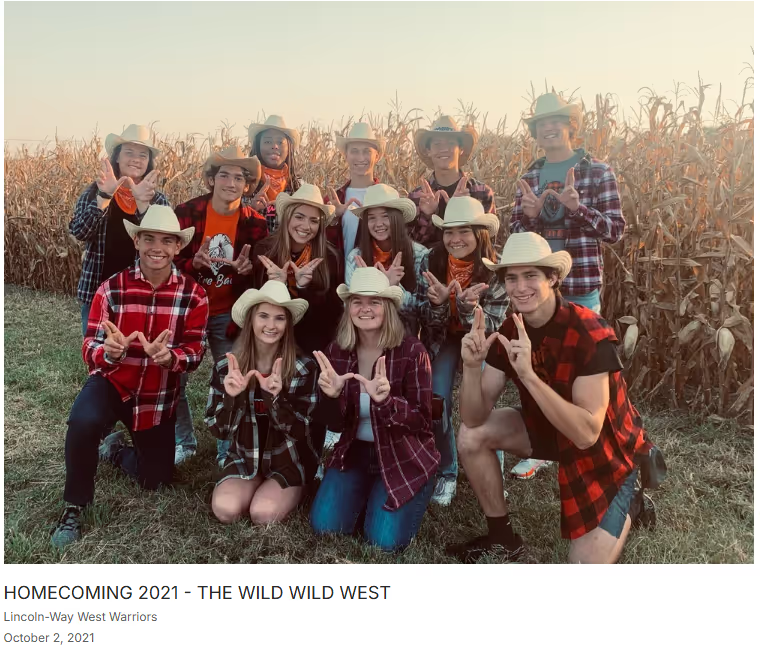
Lincoln-Way West High School in Illinois ran a "Wild Wild West" homecoming week, with flannel day, class color day, and a western-themed spirit day leading into a Friday night game. The dance itself was held off-campus at a local commons, with food trucks adding to the casual, community feel of the event.
Why it stands out: When those attending don't need to buy anything to create looks around the theme and participate, attendance goes up across the board.
Decor ideas:
A music festival theme is flexible enough to run all week across different genres: country, hip-hop, pop, throwback, while keeping a concept that ties everything together. It is essentially a theme with the spirit week inspiration built-in.
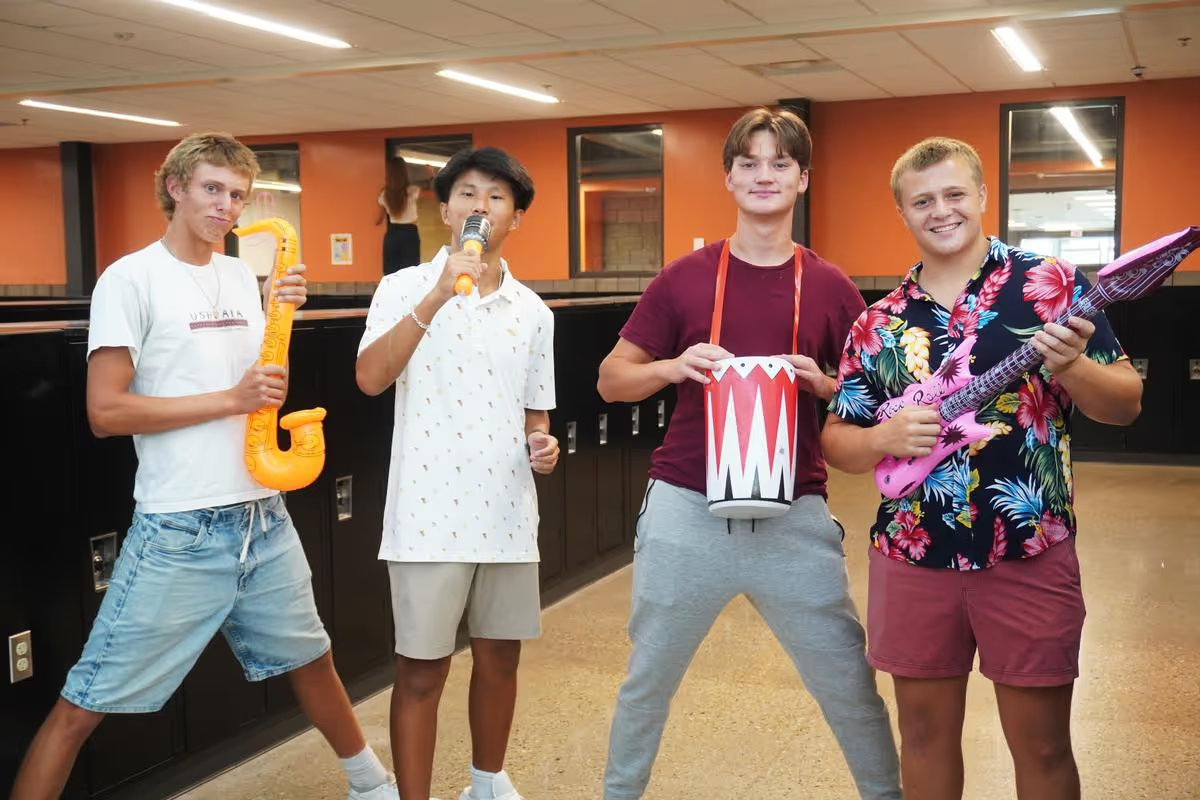
Thornapple Kellogg High School in Michigan made their 2024 homecoming theme 'TK Palooza', with each spirit day dedicated to a different music genre: Country Day, Hip Hop Day, Pop Music Day, and Throwback '60s Day. The school-wide rollout extended the theme across all grade levels, making it a community-wide event pulled off with a low budget.
Why it stands out: Every student has a musical genre they love, which means every student can find a day they're excited to dress for. It keeps the week feeling fresh, without needing expensive venue transformations.
Decor ideas:
The denim-and-diamonds concept is a smart budget theme because it pairs something everyone owns (denim) with glamorous accessories. It’s elevated but at the same time accessible.

Why it stands out: Attendees can wear their own jeans and elevate the look with jewellery or sparkly accessories. There is no formal wear required, in fact, the contrast between casual and glam is the whole point.
Decor ideas:
This theme is the one to pick for schools that want an accessible, fun dress code that still photographs well and feels like a proper event. It's a great pick if your student body is mixed on how formal they want things to be.
Sometimes the simplest idea is the best one. A school colors night strips the theme back to its most essential element: pride in your own school.
Why it stands out: Participation is essentially guaranteed. Every student owns something in their school colors, which means no one is left out for financial reasons. It also doubles as a lead-in to the Friday night game, keeping energy high all week.
Decor ideas:
Homecoming already falls in autumn, so leaning into the season is an easy creative decision. A rustic fall theme ties the event to the season and delivers a warm, inviting atmosphere that works with almost any venue.
Why it stands out: The dress code is accessible: flannel shirts, boots, denim, and cozy layers are things folks already own. There’s no shopping required, which means higher participation across income levels. The aesthetic also scales naturally: it looks just as good in a school gym as it does in a rented hall, which keeps anticipation high.
Decor ideas:
Some schools want their homecoming dance to feel distinctly formal: a step up from the usual school social. These themes are designed to set that tone from the moment guests walk in the door.
A galaxy-inspired formal theme takes the classic 'stars' concept and gives it a more sophisticated, high-design treatment. The vision: a ballroom that looks like the inside of a planetarium.
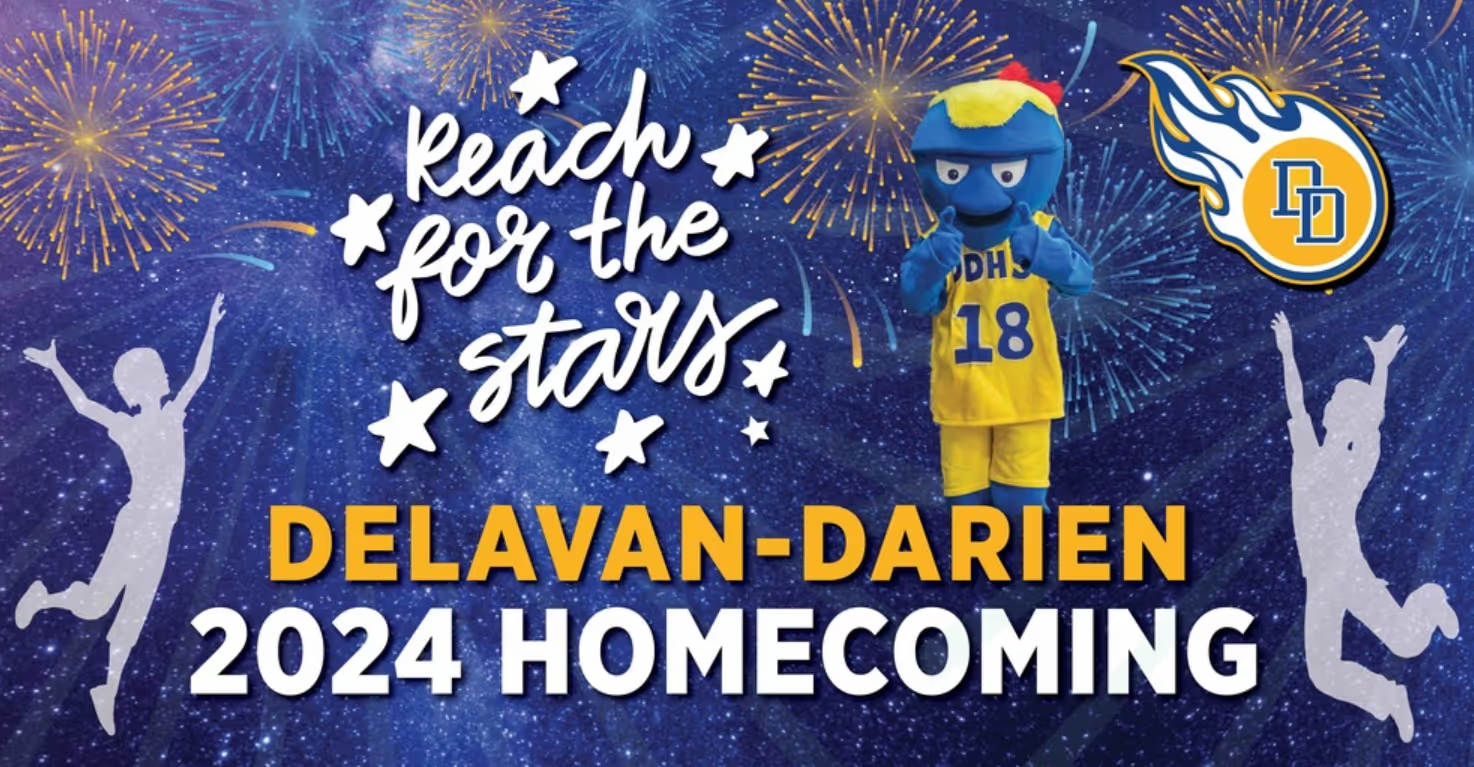
Delavan-Darien High School in Wisconsin chose 'Reach for the Stars' for their 2024 homecoming, turning their gym into a galaxy-inspired ballroom. The focus was on creating an atmosphere that felt special and formal and a genuine upgrade from the standard decorated gym.
Why it stands out: It clearly differentiates the formal dance from the casual spirit week activity days. Attendees immediately understand this is the 'elevated' event of the week. The visual effect, done well, is genuinely breathtaking.
Decor ideas:
A black and gold color scheme is one of the most reliably elegant choices for a formal school event. It's sophisticated, visually cohesive, and gives the room an immediately prestigious feel.

Trinity Academy in North Carolina runs an annual Black and Gold Gala that has become a school tradition, celebrated for the sense of occasion it creates and its role in bringing the community together. It isn't technically a homecoming event, but the combination of a strict dress code, a formal venue, and a consistent visual identity makes it work, and any school can apply that same idea to homecoming.
Why it stands out: The dress code requirement creates a visually unified room that looks stunning in photos. The formal nature raises the perceived status of the event, which motivates those attending to show up in elegant garb..
Decor ideas:
Only a few themes can make a school gym feel genuinely luxurious, and Champagne Dreams is one of them. Built around a palette of whites, creams, gold, and shimmer, the entire aesthetic signals "special occasion".
Why it stands out: It holds a lot of potential for a transformative set up. It's the kind of night guests talk about for years because it gives them an elevated experience within the school itself.
Decor ideas:
A sophisticated take on the celestial theme, Moonlight and Marble evokes a Grecian feel with cool whites, soft greys, gold accents, and a venue that feels like a high-end art gallery crossed with a ballroom.
Why it stands out: The theme is visually striking without being loud. The color palette white, ivory, grey, and gold, is elegant and photographs really well..
Decor ideas:
Where Moonlight and Marble is cool and architectural, Celestial Elegance is warmer, more whimsical. It mixes soft lighting, hanging stars, and glowing centerpieces to create grandeur that feels special but is easy to achieve with simple decorations.
Why it stands out: It treads the line between formal and magical. Attendees feel like they're attending something truly special and memorable. The palette also allows for a wide range of dress options, from classic black tie to rich jewel tones.
Decor ideas:
If your school is ready to move beyond the standard theme ideas, here are some out-of-the-box ideas that get people talking.
Basing your homecoming theme on a specific film or show is one of the most effective ways to generate real buzz from the moment it's announced. You get to harness the emotional connection that students already have to the source material. The best picks are ones that have a strong visual world with vivid color and a recognizable aesthetic.

RHCS, California chose Rio as their 2024 homecoming theme, building an entire spirit week around the film's world. Each day had its own twist drawn from the movie, like twin days inspired by characters Blu and Jewel, and surfers vs. tourists, or animal print day. The theme was planned months in advance specifically to deliver a "wow factor,".
Why it stands out: A specific, well-chosen idea gives the planning committee a complete creative brief from day one: the color palette, the soundtrack, the decor style, and the dress code all flow naturally from the source. Planners and attendees don't need to interpret a vague concept, they just need to channel their connection with the story.
Decor ideas:
An Around the World theme is a great way to give each class a unique experience within the same theme. Each class claims a different country or region, then competes through hallway decorations, float design, and dress-up days. This means the creative energy runs school-wide for the entire week.
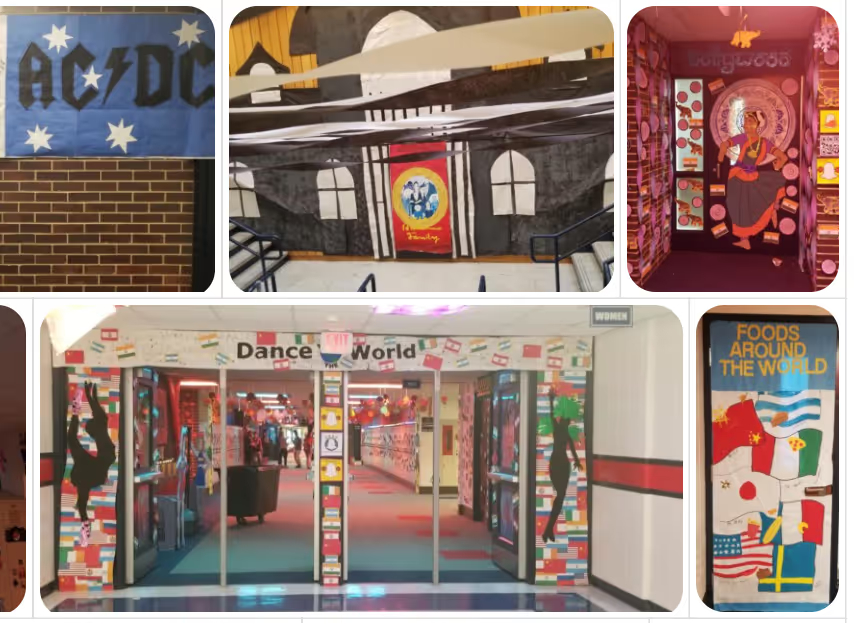
Conant High School in Illinois used "Around the World" as their homecoming theme and had student decorate different hallways, each representing a different global destination. The result was a school-wide installation that turned the building itself into an event.
Why it stands out: It naturally distributes participation and encourages creativity since each grade has to think differently about their assigned region. It's also one of the most inclusive homecoming themes available. Every cultural background has a place in it.
Decor ideas:
A Candyland theme is immediately fun and community-facing. It's vivid, playful, and translates beautifully to parade floats and family-friendly events. It's also a great way to involve younger students and the broader community beyond high school.

Westminster High School in Colorado went all-in on 'Candyland' for their 2024 homecoming parade, with bright color schemes and giant candy-themed float designs. The community event aspect worked particularly well; the theme is welcoming for all ages, which brings more families out to the parade and builds school spirit.
Why it stands out: It’s a fun theme that works well for homecoming parades and encourages community interaction with the floats. Giant candy-themed props and bright primary colors have a huge visual impact, increasing participation and excitement.
Decor ideas:
An enchanting theme with castles, magic, and the feeling that anything could happen, this is the perfect one to pick for an unforgettable night. It's immersive, visually rich, and gives attendees full permission to go all-out with their looks.
Why it stands out: It moves beyond the typical school dance atmosphere and creates a sense of occasion. Those who might not otherwise dress up find it easier to commit. The theme invites imagination and they can put their own spin on it..
Decor ideas:
This is a step up from the standard music festival concept: instead of a single-room dance, the school is divided into "zones," each with a different genre, playlist, and visual aesthetic. Students move between zones throughout the night, making homecoming feel more like a live experience than a standard dance.
Why it stands out: It keeps attendees moving and engaged all night rather than clustering in one corner. It also naturally accommodates different tastes: one who loves country music and one who lives for hip-hop, both have somewhere to feel at home.
Decor ideas:
Just choosing a good theme isn’t enough; it has to fit your school. Here’s how to choose one that works.
Trends shift quickly, so last year’s idea might already feel outdated. Ask your student council or run a quick poll. Participants are more likely to show up and take part if they have a say in the events.
Some themes are flexible, others need specific setups. A Celestial Elegance theme needs height and space for hanging decor. An Enchanted Forest needs room to build things out. A Neon Glow Party only works if you can control lighting. Take a walk through your venue and be honest about what you can pull off.
Pick something your team can actually execute. A Western Week or Music Festival is simple and easy to set up. A Masquerade Ball or Galaxy Ballroom takes more planning and resources. If you’re stretched thin, go simpler and do it well.
The theme should help guide everything else. Music, outfits, photo spots, even small activities should all connect. A groovy retro night, for example, makes it easy to choose mirror balls for decor, vintage looks for dress code, and backdrops and photo booths in bold, warm colors and patterns. When it all lines up, the event just feels more cohesive and better.
The more effort or money it takes to participate, the more people will sit it out. Choose a theme that’s easy to show up for. The goal is simple: everyone should feel like they can be part of it.
Once you’ve picked the theme, you arrive at your real challenge: making it come to life across an entire week of events. Here are some planning moves that will aid you in delivering a memorable experience:
Have a single page with all the details: schedule, dress-up days, tickets, and updates. When information is scattered, people miss things and you end up answering the same questions over and over.
Skip paper lists and manual tracking if you can. Use one system so you know your numbers ahead of time and avoid last-minute confusion.
People rarely act on the first message. Send a reminder when you announce, another a week out, one a couple of days before, and one on the day. It makes a big difference in turnout.
You’re talking to students, parents, and sometimes alumni. Send each group what they need so no one gets overwhelmed or misses something important.
Don’t let it end when the night is over. Share photos, post a quick recap, and thank the people who helped. It keeps the energy going and makes next year easier to build.
Managing a multi-event Homecoming week and everything around it can get messy. Registrations, communication, tracking attendance, and follow-ups all take time, and small gaps can turn into bigger issues.
That’s where having a system like Almabase’s event solution helps by bringing everything into one place so your team isn’t juggling tools or chasing information. This is done through a few core functions
Instead of spreading details across emails, social posts, and flyers, you can set up a single event page in Almabase. This includes sub-events with customized access and admin features so that students, parents, and alumni know exactly where to go for schedules, registration links, and updates. This keeps everyone informed and cuts down confusion from scattered information.
Almabase lets you handle RSVPs and ticketing in one place without manual tracking. You can see your numbers in real time, which makes planning everything else a lot more straightforward. This gives you clarity early, so you can plan with fewer last-minute surprises.
You can send reminders, updates, and follow-ups directly through Almabase. It helps make sure people don’t miss key details and saves your team from answering the same questions repeatedly. This improves turnout and reduces last-minute back-and-forth.
With everything in one system, you can track who registered, who attended, and how different groups engaged. That visibility makes it easier to plan future events and improve each year. This helps you make better decisions instead of guessing what worked.
Almabase also helps you follow up after homecoming, whether that’s sharing photos, sending a recap, or staying in touch with alumni and families. It turns a one-night event into something that builds longer-term engagement, so people keep coming back.
Planning your next school event? See how Almabase can help you manage registrations, communication, and community engagement more smoothly. Request a demo to get started.

20+ Inspiring High School Homecoming Theme Ideas (2026)
Lorem ipsum dolor sit amet, consectetur adipiscing elit. Suspendisse varius enim in eros elementum tristique. Duis cursus, mi quis viverra ornare, eros dolor interdum nulla, ut commodo diam libero vitae erat. Aenean faucibus nibh et justo cursus id rutrum lorem imperdiet. Nunc ut sem vitae risus tristique posuere.
Anwesha Kiran
April 10, 2026
12 minutes
%201.svg)
%201.svg)
%204.svg)




.svg)